Showing posts with label iOS 5. Show all posts

Sunday, May 20, 2012

Untethered iOS 5.1.1 Jailbreak is Just Days Away From Release


Pod2g has announced that the untethered jailbreak of iOS 5.1.1 is just days away from release.

Thanks to awesome work of @planetbeing and @pimskeks, we're near ready for a release. Now it's a matter of days.

Here is the list of devices that are known to work for sure:
● iPhone 3Gs
● iPhone 4
● iPhone 4 CDMA
● iPhone 4S
● iPad 1
● iPad 2 Wifi
● iPad 2 GSM
● iPad 2 CDMA
● iPad 3 Wifi
● iPad 3 CDMA
● iPod 3G
● iPod 4G

Here is the list of devices that won't be supported:
● AppleTV 3

Remains to test (but that should work):
● iPad 2 Wifi, R2
● iPad 3 Global
● AppleTV 2

You can follow Limerain on @limerain_com, Facebook page , or RSS to be notified of any updates.


*thanks iclarified*

Send us a story or tip @ TipsForLimerain.com@gmail.com and follow our pages for the latest limera1n, rubyra1n, and all tech stories, follow us on Twitter at @iphonepixelpost or @limerain_com
And like our Facebook page www.iPodSets.com
- Posted using my iPhone 4

Sunday, April 22, 2012

How to Unlock Your iPhone 4S, iPhone 4, iPhone 3GS Using SAM [5.0, 5.0.1, 5.1]


These are instructions on how to unlock your iPhone using SAM. This method will work with the iPhone 4S, iPhone 4, iPhone 3GS, and iPhone 3G on any jailbreakable firmware including 5.x.


Step One
Jailbreak your iPhone. You can find instructions on how to do that using the Limerain Jailbreak Tutorials Page.

Step Two
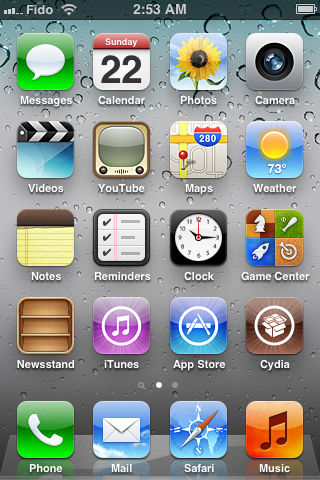
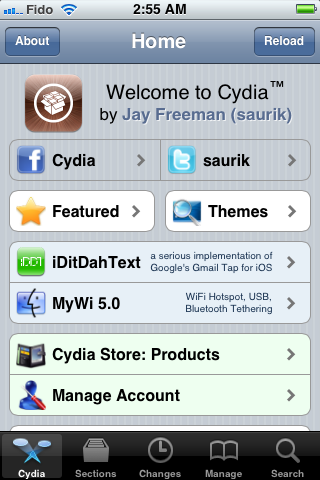
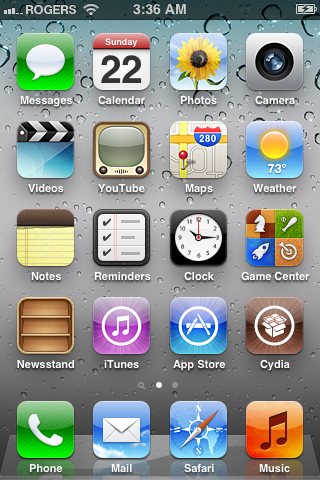
Tap to launch Cydia from your SpringBoard.


Step Three
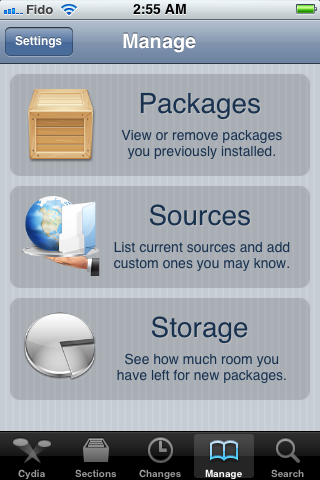
Press to select Manage from the tabs at the bottom of the screen.


Step Four
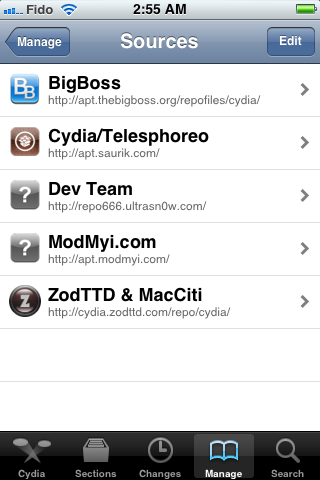
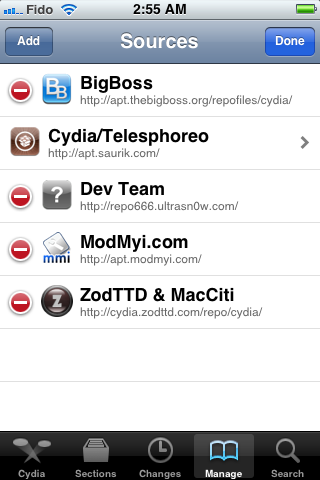
Press the large Sources button.


Step Five
Press the Edit button at the top right of the screen.


Step Six
Press the Add button that appears at the top left of the screen.


Step Seven
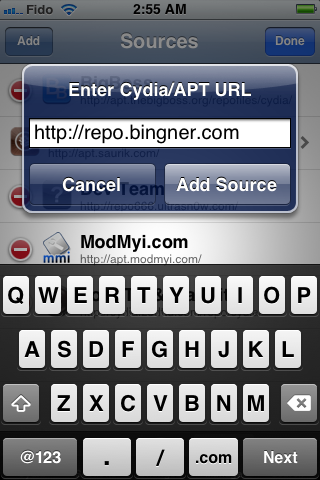
Enter http://repo.bingner.com and press the Add Source button.


Step Eight
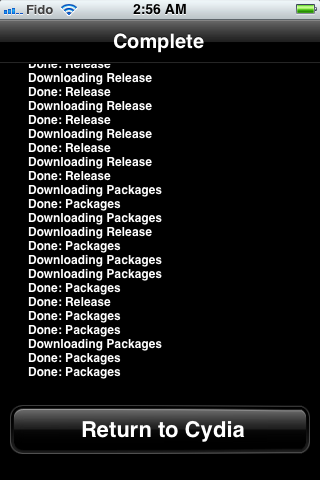
Press the large Return to Cydia button.


Step Nine
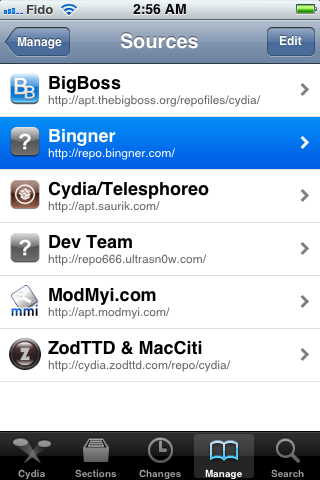
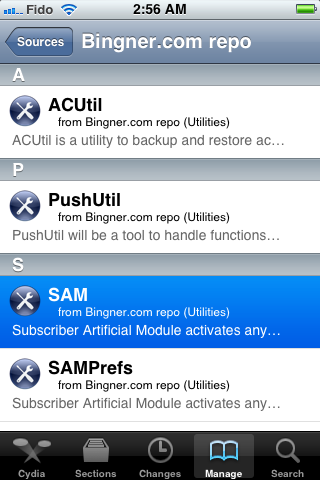
Press to select Bingner from the list of Sources.


Step Ten
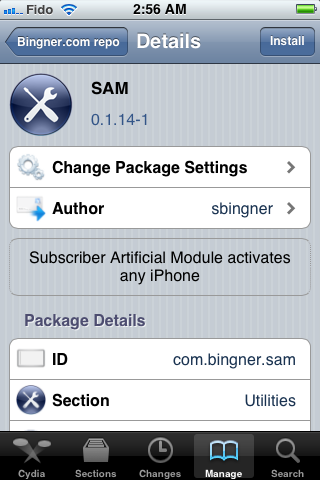
Choose SAM from the list of packages.


Step Eleven
Press the Install button at the top right of the screen.


Step Twelve
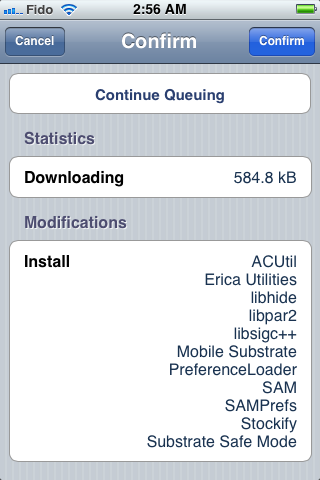
Press the Confirm button to begin installation.


Step Thirteen
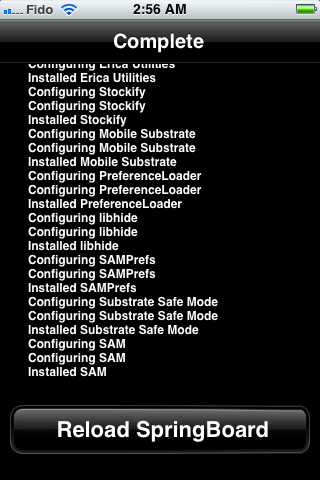
Once installation has completed press the large Restart SpringBoard button.


Step Fourteen
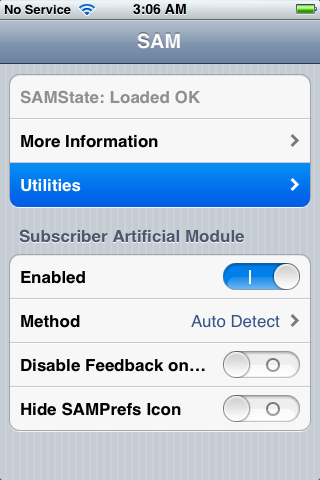
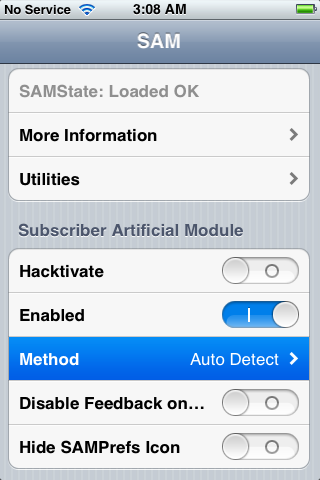
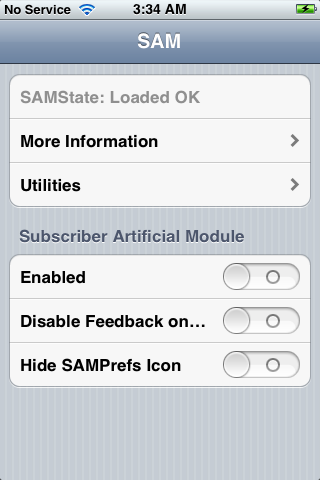
Insert your new SIM card and tap to select SAMPrefs from your SpringBoard.


Step Fifteen
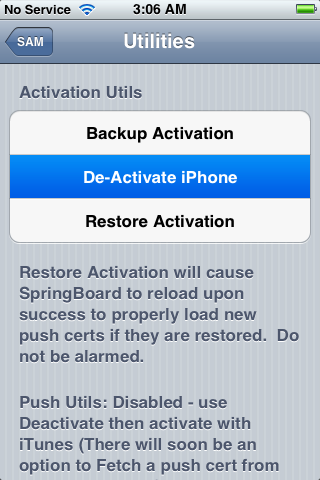
Tap Utilities


Step Sixteen
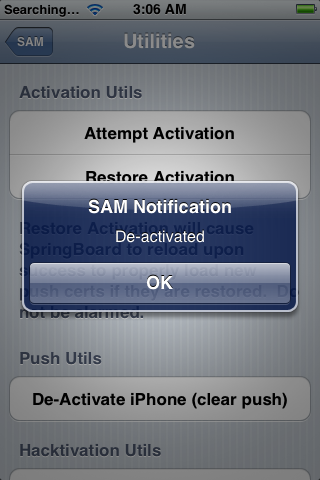
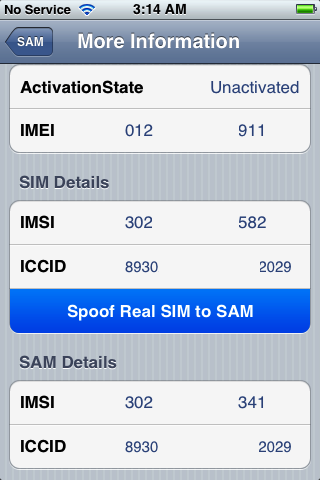
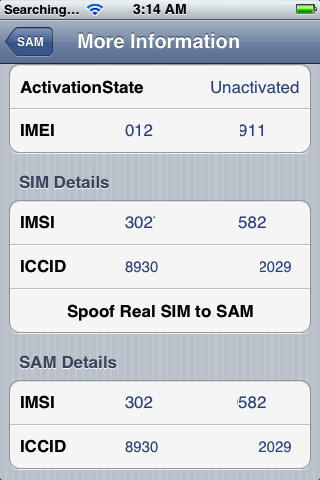
Press to select De-Activate iPhone. Your ActivationState under "More Information" should now be "Unactivated". If you don't have De-Activate iPhone you can use De-Activate iPhone (clear push).


Step Seventeen
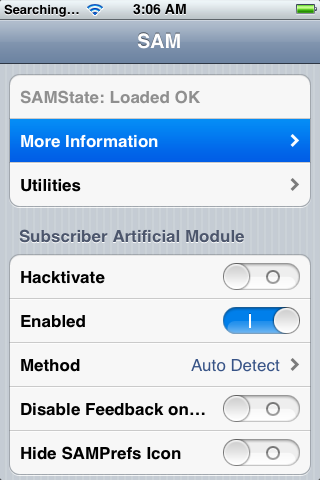
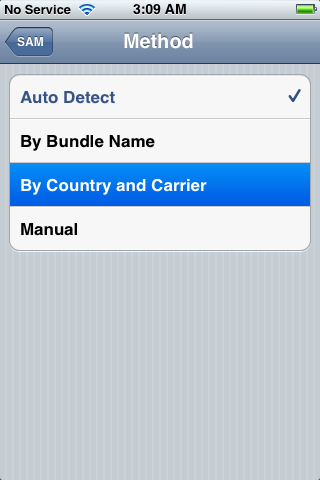
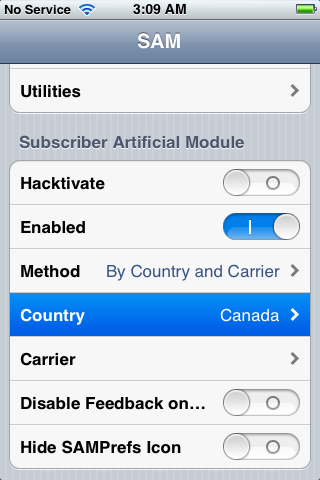
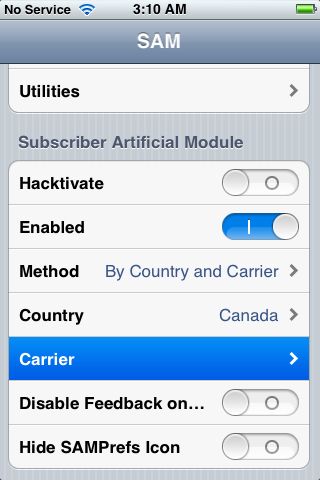
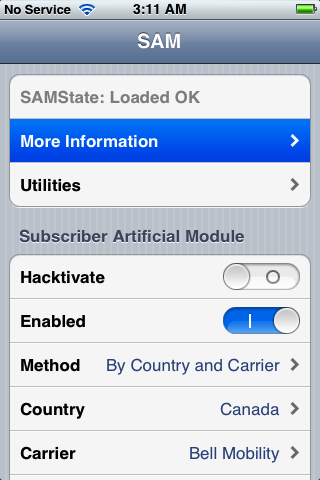
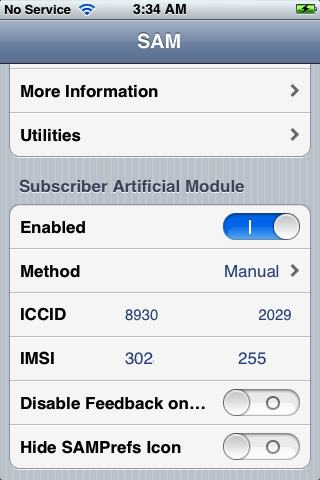
With SAM enabled, tap Method and choose By Country and Carrier.


Step Eighteen
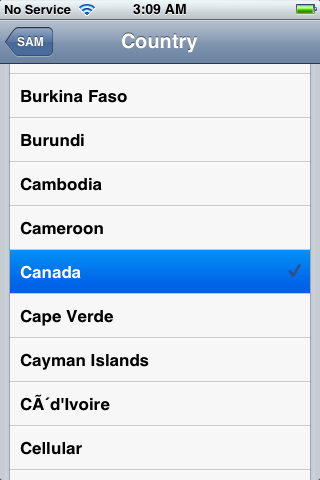
Tap Country and choose the country of your ORIGINAL SIM.


Step Nineteen
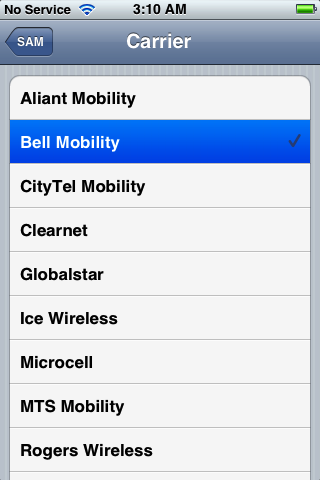
Tap Carrier and choose your ORIGINAL carrier that your iPhone is locked to.


Step Twenty
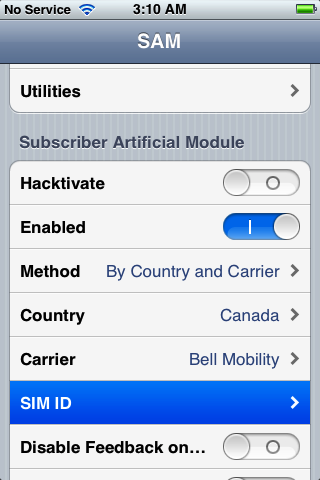
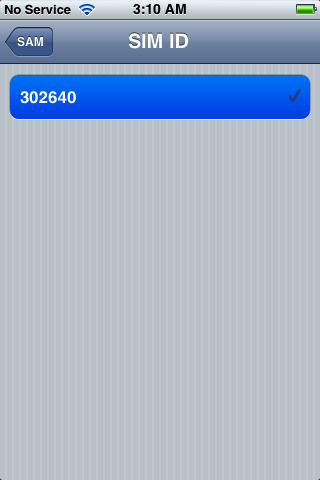
For some carriers operating more than one Carrier ID you may need to select SIM ID. If you are unable to activate in Step Twenty Four then you have selected the wrong one.


Step Twenty One
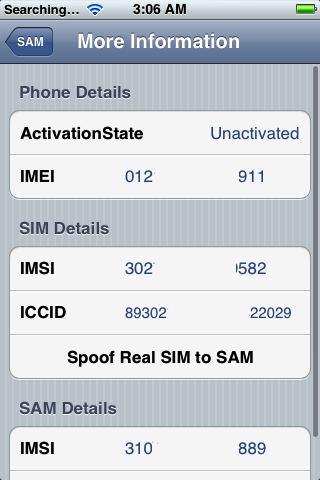
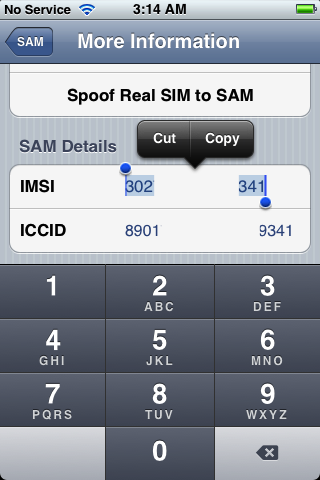
Tap More Information and copy the IMSI under SAM Details to the clipboard.


Step Twenty Two
Tap Spoof Real SIM to SAM


Step Twenty Three
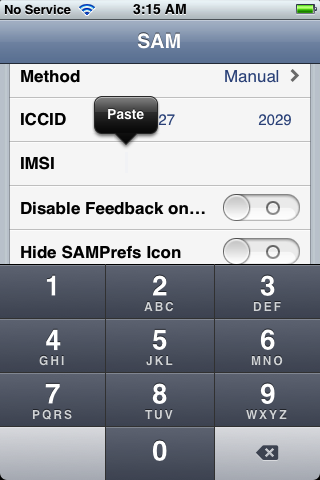
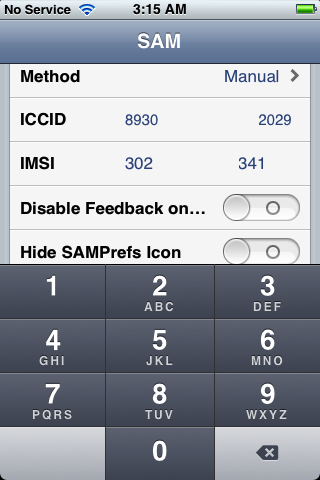
Go back to the main SAM screen and paste the IMSI number in your clipboard.


Step Twenty Four
Connect your iPhone to the computer and let iTunes reactivate your phone.


"Double click "Phone Number" parameter at the main device screen and make sure that the ICCID matches that of your SIM card." If not you need to start over from Step Fourteen."

Step Twenty Five
Unplug your iPhone from the computer and close iTunes.

Step Twenty Six
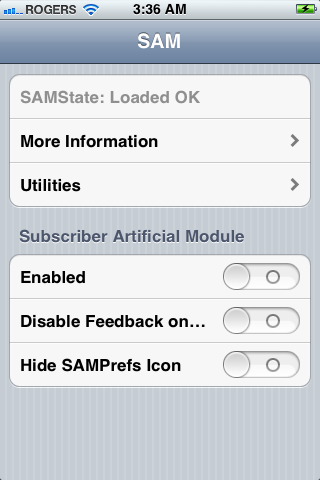
Reopen SAMPrefs from your SpringBoard and disable it using the Enabled switch.


Step Twenty Seven
Connect your iPhone to the computer and launch iTunes again. 


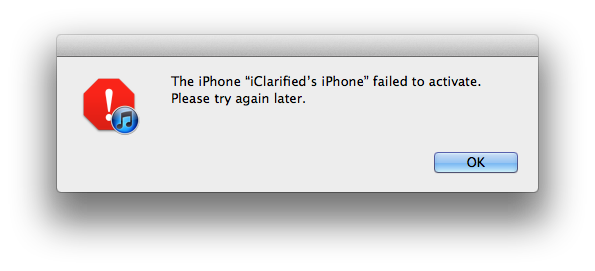
You should get an error saying that your phone cannot be activated. This is normal. Just close iTunes and open it again.


Step Twenty Eight
In a short time you should see signal bars. Congratulations!


Step Twenty Nine
You should now backup your iPhone unlock ticket in case this method is ever blocked. You can find instructions on how to backup the unlock ticket here.


IMPORTANT:
If push notifications stop after this process, you can restore then with the Clear Push utility in SAM, followed by connecting to iTunes.

Your phone will work normally with your SIM card and that SIM card ONLY since we have tricked iTunes to think that ICCID is one of the intended carrier's. The phone can be rebooted and connected to iTunes freely without losing the "unlock", at least for now. 

A big thanks to Loktar_Sun and Laforet for their contributions!


UPDATES:
You can follow Limerain on TwitterFacebook, or RSS for updates...

*thanks iclarified*

 Send us a story or tip @ TipsForLimerain.com@gmail.com and follow our pages for the latest limera1n, rubyra1n, and all tech stories, follow us on Twitter at @iphonepixelpost or @limerain_com And like our Facebook page www.iPodSets.com - Posted using my iPhone 4

Friday, January 6, 2012

Planetbeing, MuscleNerd, and P0sixninja Help Pod2g With A5 Untethered Jailbreak


Pod2g has announced that Planetbeing, MuscleNerd, and P0sixninja have joined his effort to release an untethered jailbreak of the iPhone 4S and iPad 2.

@planetbeing, the legendary hacker behind iPhone Linux and lot of jailbreaks has joined the A5 research! The famous @MuscleNerd, the leader of the iPhone Dev Team, who did a lot of tests for Corona and whom integrated it and made it simple in redsn0w is willing to help also. And last, but not least @p0sixninja, the leader of the Chronic Dev Team, and my partner for years on iPhone security research has started to code and fuzz the Apple sandbox.

We now have a dream team to find a path for a public release of the A5 jailbreak. Cross your fingers.

Yesterday, pod2g posted a FAQ on why the A5 jailbreak had not been released yet. The key reason being that the exploit used to inject the untethering files to the 4S relies on having a developer account.

With the help of planetbeing, MuscleNerd, and p0sixninja, pod2g is hoping to find a distributable exploit to remount the system partition read/write and to set Corona files at the correct places.


*thanks iclarified*

Send us a story or tip @ TipsForLimerain.com@gmail.com and follow our pages for the latest limera1n, rubyra1n, and all tech stories, follow us on Twitter at @iphonepixelpost or @limerain_com
And like our Facebook page www.iPodSets.com
- Posted using my iPhone 4

Tuesday, January 3, 2012

Pod2g Makes Progress With A5 Jailbreak, Release Could Come in a Week!


Pod2g has just tweeted some interesting information regarding the A5 jailbreak. Apparently, pod2g has made good progress on the jailbreak for A5 devices and claims that if lucky, we could expect it in a week!

I made a step today for the A5. With some luck we could expect a release in a week.

Keep in mind though, there are still some roadblocks ahead and the ETA can always get pushed back. In the meantime, you can jailbreak any pre-A5 device on 5.0.1 using our jailbreak tutorial page located here.

We will keep you updated on the A5 jailbreak as well. You can follow us on @limerain_com, Facebook page , RSS.


via Pod2g


*thanks iclarified*

Send us a story or tip @ TipsForLimerain.com@gmail.com and follow our pages for the latest limera1n, rubyra1n, and all tech stories, follow us on Twitter at @iphonepixelpost or @limerain_com
And like our Facebook page www.iPodSets.com
- Posted using my iPhone 4

Tuesday, December 27, 2011

How to Perform an Untethered Jailbreak of Your iPhone 4 Windows 5.0.1


These are instructions on how to perform an untethered jailbreak of your iPhone 4 on 5.0.1 using RedSn0w for Windows. The Mac version of this tutorial is here.

This procedure will cause you to upgrade your baseband potentially ruining your chances for an unlock. Please follow a Windows tutorial on how to update to iOS 5.0.1 using a custom ipsw if you need an unlock.

If you want to jailbreak a lower firmware version you can find the appropriate tutorial here.

Step One
Create a folder on your desktop called Pwnage

Download the latest version of RedSn0w from here and place it in the Pwnage folder. Likewise, download the 5.0.1 firmware from here and place it in the Pwnage folder. (Note: you do not need to download the 5.0.1 firmware if you are already on iOS 5.0.1)

Extract the RedSn0w zip file by double clicking it.


Step Two: (You can skip this step if iOS 5 is already installed on your device)
Connect your iPhone to the computer and launch iTunes.


Select your iPhone from the list of devices on the left. Now hold down Shift and click the Restore button. Restore is preferred as it won't create any wasted space on your iPhone.


Navigate to the Pwnage folder on your desktop and select the 5.0 firmware ipsw. Click the Choose button to continue.


iTunes will now update your iPhone to the new firmware.

Step Three
Launch the redsn0w application from the redsn0w folder we extracted earlier.


**Windows 7 users may want to try running the redsn0w executable mode as an administrator in Windows Vista compatibility. You can do this by right clicking the executable and selecting Properties from the contextual menu.

Step Four
Once RedSn0w opens click the Jailbreak button


Step Five
Plug your iPhone into the computer and make sure its OFF then click the Next button


Step Six
RedSn0w will now guide you through the steps to get into DFU mode. You can find more help with DFU mode here


Hold down both the Home button and the Power button for 10 seconds.


Release the Power button and continue holding the Home button until RedSn0w detects the device.


Step Seven
Your iPhone will now reboot


Step Eight
RedSn0w will now prepare the jailbreak data.


Step Nine
Select Cydia from the list of options and click Next.


Step Ten
Your iPhone will now be rebooted again and RedSn0w will begin uploading the new RAM Disk and Kernel.


Step Eleven
Once this is complete you will be notified that RedSn0w is done. When your iPhone finishes rebooting (5 minutes or so) it will be jailbroken with Cydia on the SpringBoard.


*As usual a big thanks to the iPhone Dev-Team, Pod2g, and Geohot for their hard work and contribution to the iPhone community.


*thanks iclarified*

Send us a story or tip @ TipsForLimerain.com@gmail.com and follow our pages for the latest limera1n, rubyra1n, and all tech stories, follow us on Twitter at @iphonepixelpost or @limerain_com
And like our Facebook page www.iPodSets.com
- Posted using my iPhone 4