Showing posts with label Shsh. Show all posts

Saturday, April 21, 2012

How to SSH Into Your iPhone Using WinSCP (Windows)


These are instructions on how to transfer files to your iPhone using WinSCP. To follow this tutorial you need to have a jailbroken iPhone with SSH installed. You can find instructions on how to jailbreak your iPhone here (3G) or here (2G)

Step One
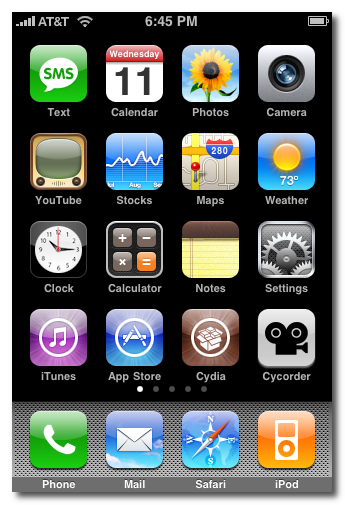
Press the Cydia icon on your Springboard

Step Two
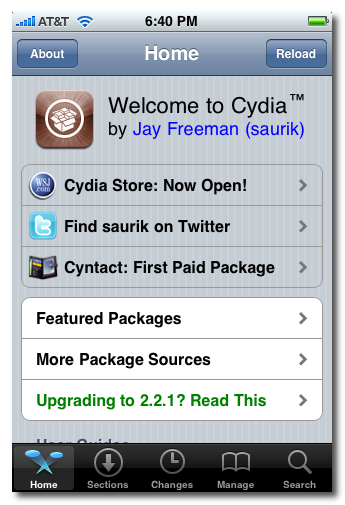
Press to select the Sections tab at the bottom of the screen.

Step Three
Press to select Networking from the list of Sections.
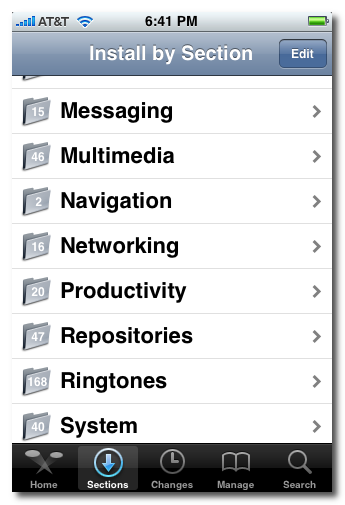

Step Four
Press to select OpenSSH from the list of Packages.
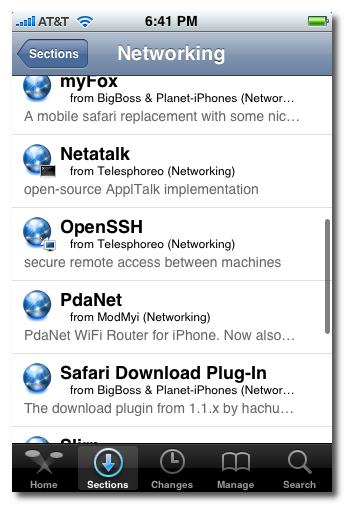

Step Five
Press the Install button at the top right of the screen.
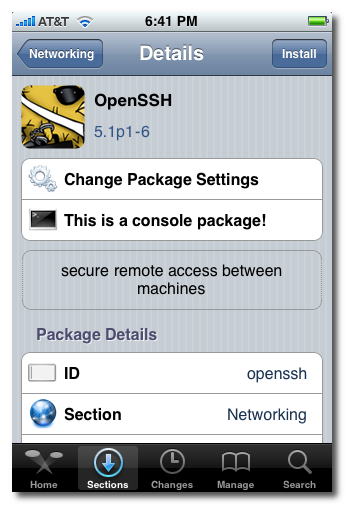

Step Six
Press the Confirm button at the top right of the screen.
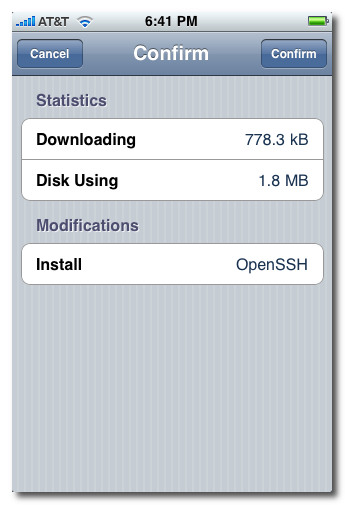

Step Seven
Once installation has completed successfully press the large Return to Cydia button.
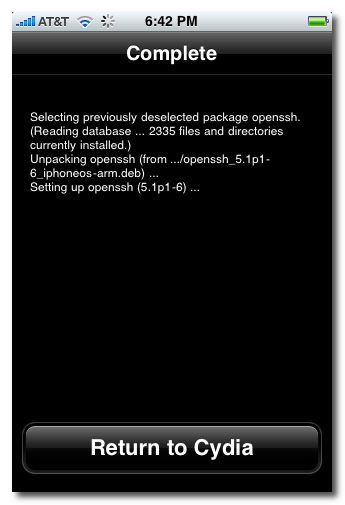

Step Eight
Hit the home button on your iPhone to return to the Springboard.


Step Nine
We must now obtain the IP Address of the iPhone. To do this press the Settings button on your Springboard.


Step Ten
Press to select Wi-Fi from the Settings Menu


Step Eleven
Make sure you are connected to a wireless network then press the circular blue arrow button.


Step Twelve
Take note of your IP address from the Wi-Fi details screen


Step Thirteen
Make sure you are on the same wireless network as your iPhone and launch WinSCP by clicking it on your desktop, or in the start menu. You can download WinSCP from here.


Step Fourteen
Once WinSCP opens, enter your iPhone's IP Address into the Host Name Field. Then enter root as your iPhone username and and alpine as the password. Then click Login.
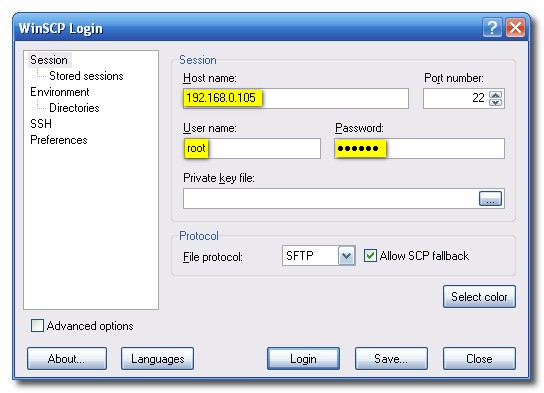

Step Fifteen
You will now see WinSCP connecting to your iPhone. The first time you login using SSH, it may take 30-45 seconds. 
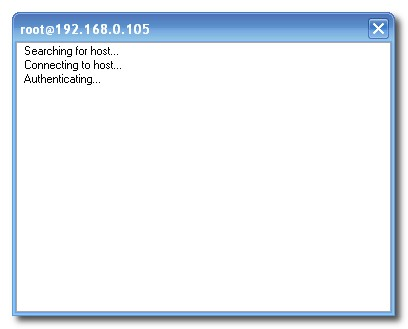

Step Sixteen
If a Warning dialogue pops up, click Update or Add
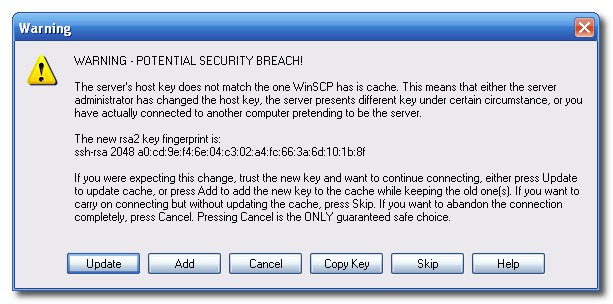

Step Seventeen
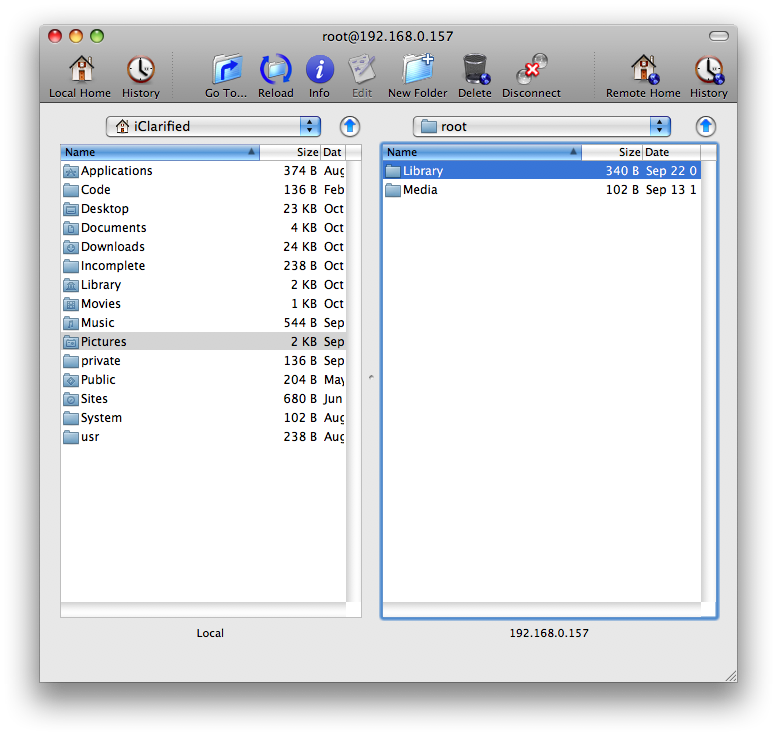
After about 30-45 seconds, WinSCP should successfully log you into your iPhone. You will be placed in the /private/var/root directory.
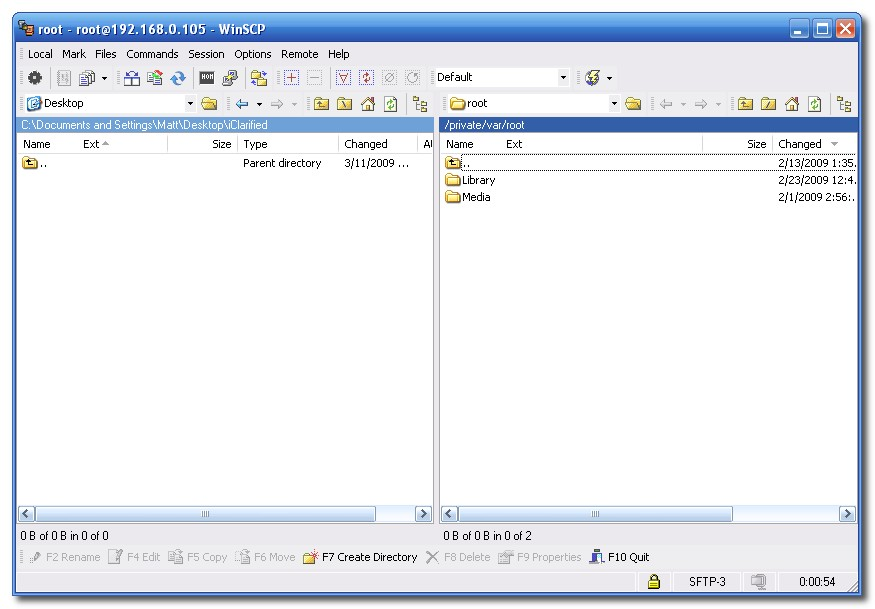

Step Eighteen
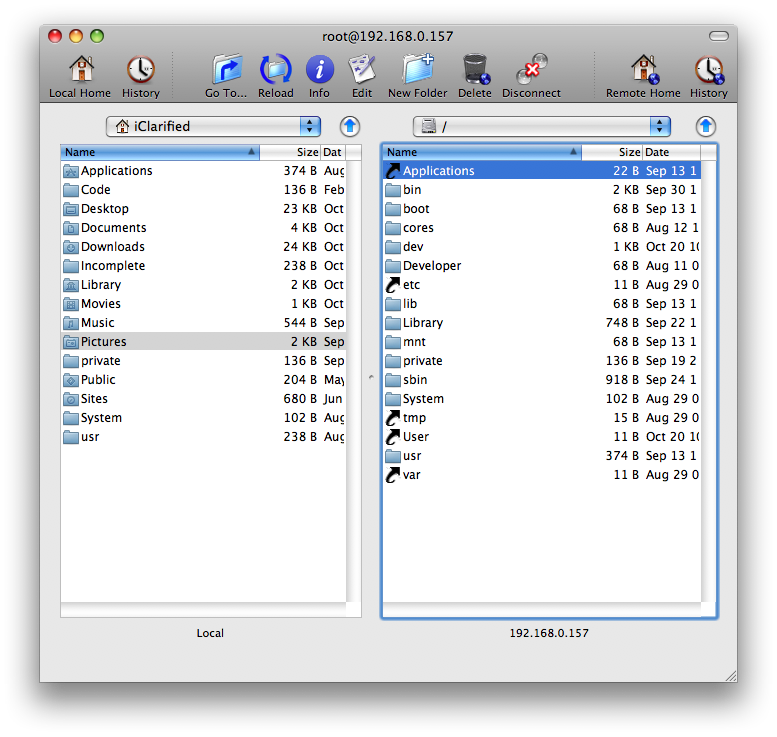
To get to the root folder of the iPhone you can select / from the dropdown on the right side of the window. From here you can access all the folders on your iPhone for example the Applications folder


Step Nineteen
To transfer a file to the iPhone simply locate your local (on your computer) file using the left pane. Then navigate to the desired location in the right pane. Drag the file from the left pane to the right pane to copy the file to your iPhone.
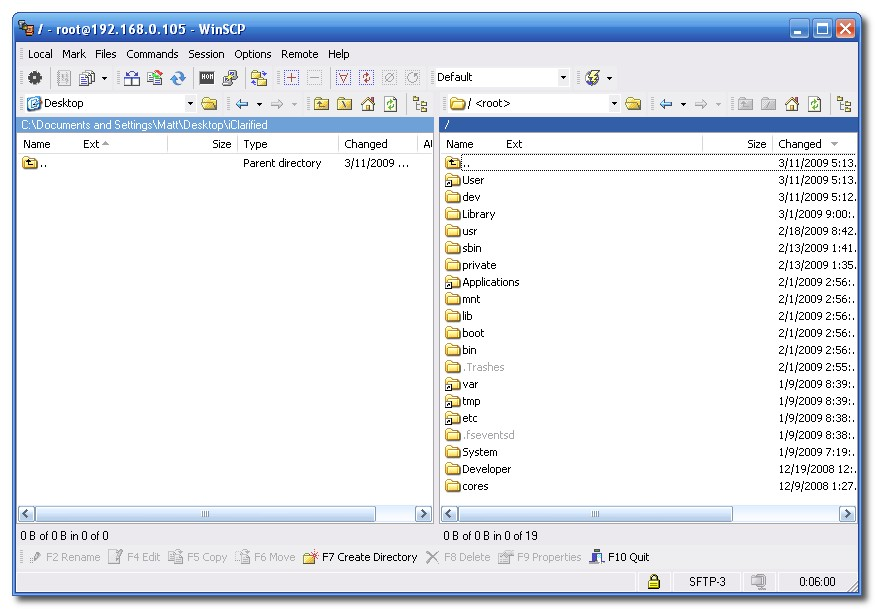

**Note**
As user dlr stated, it is a good idea to set auto-lock to never. You can do this by going to Settings>>>General>>>Auto-Lock and set to never.

*thanks iClarified*

 Send us a story or tip @ TipsForLimerain.com@gmail.com and follow our pages for the latest limera1n, rubyra1n, and all tech stories, follow us on Twitter at @iphonepixelpost or @limerain_com And like our Facebook page www.iPodSets.com - Posted using my iPhone 4

How to Transfer Files to Your iPhone Using Fugu (Mac)


These are instructions on how to transfer files to your iPhone using Fugu. To follow this tutorial you need to have a jailbroken iPhone with SSH installed. You can find instructions on how to jailbreak your iPhone 
here.

Step One
First we must obtain the IP Address of the iPhone. To do this press the Settings button on your Springboard.


Step Two
Press to select Wi-Fi from the Settings Menu


Step Three
Make sure you are connected to a wireless network then press the circular blue arrow button


Step Four
Take note of your IP address from the Wi-Fi details screen


Step Five
Make sure you are on the same wireless network as your iPhone and launch Fugu by clicking its icon in the dock or in your Applications folder. If you do not have Fugu installed you can download it from here


Step Six
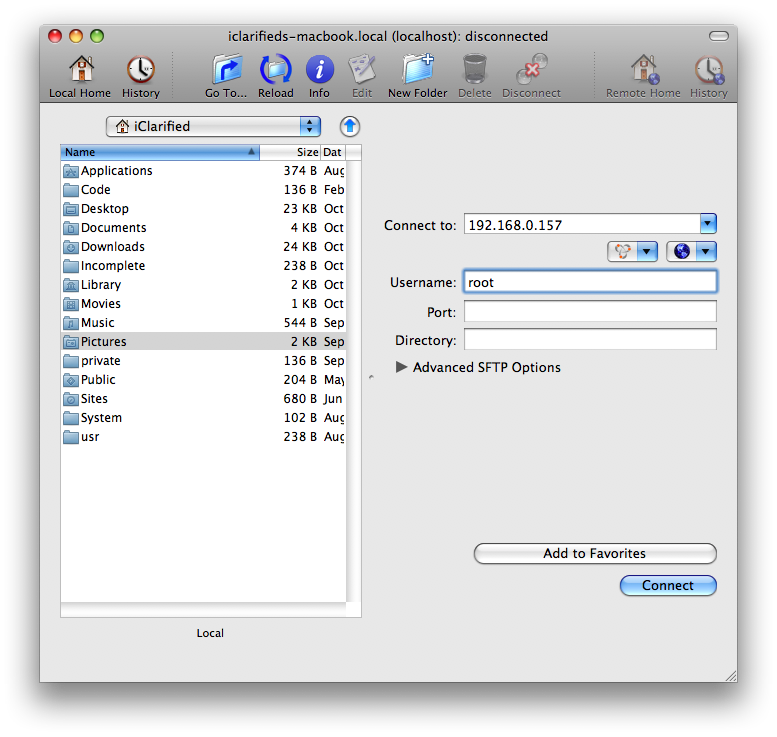
Once Fugu opens enter your iPhone's IP Address into the Connect to: field. Then enter root as your iPhone username and click the Connect button.


Step Seven
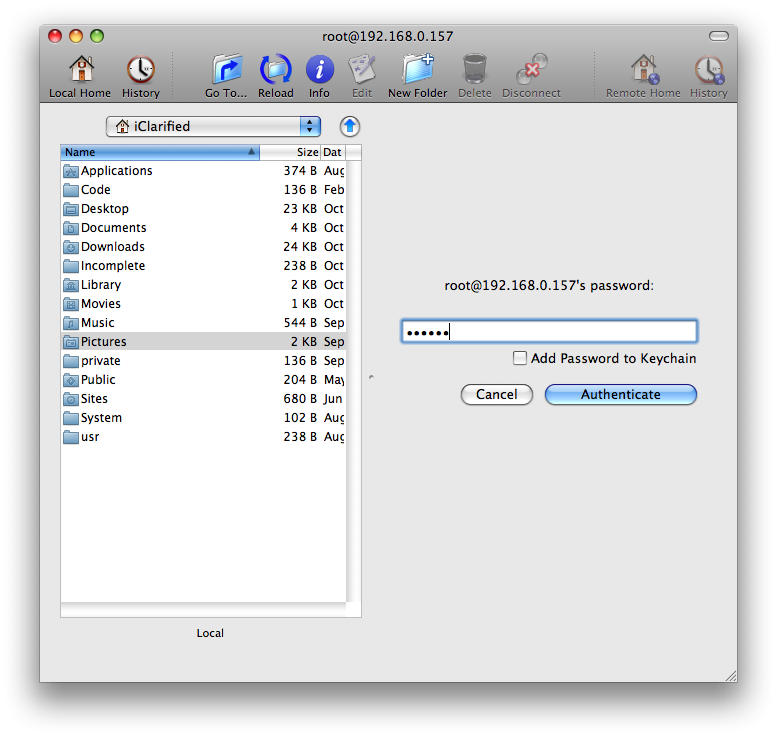
You will be asked to input a password. Enter alpine as the password and click the Authenticatebutton.


Step Eight
Fugu will then log you into your iPhone. You will be placed in the /private/var/root directory.


Step Nine
To get to the root folder of the iPhone you can select / from the dropdown on the right side of the window. From here you can access all the folders on your iPhone for example the Applicationsfolder.


Step Ten
To transfer a file to the iPhone simply locate your local (on your computer) file using the left pane. Then navigate to the desired location in the right pane. Drag the file from the left pane to the right pane to copy the file to your iPhone.

*thanks iClarified*

 Send us a story or tip @ TipsForLimerain.com@gmail.com and follow our pages for the latest limera1n, rubyra1n, and all tech stories, follow us on Twitter at @iphonepixelpost or @limerain_com And like our Facebook page www.iPodSets.com - Posted using my iPhone 4

Tuesday, January 3, 2012

Pod2g Makes Progress With A5 Jailbreak, Release Could Come in a Week!


Pod2g has just tweeted some interesting information regarding the A5 jailbreak. Apparently, pod2g has made good progress on the jailbreak for A5 devices and claims that if lucky, we could expect it in a week!

I made a step today for the A5. With some luck we could expect a release in a week.

Keep in mind though, there are still some roadblocks ahead and the ETA can always get pushed back. In the meantime, you can jailbreak any pre-A5 device on 5.0.1 using our jailbreak tutorial page located here.

We will keep you updated on the A5 jailbreak as well. You can follow us on @limerain_com, Facebook page , RSS.


via Pod2g


*thanks iclarified*

Send us a story or tip @ TipsForLimerain.com@gmail.com and follow our pages for the latest limera1n, rubyra1n, and all tech stories, follow us on Twitter at @iphonepixelpost or @limerain_com
And like our Facebook page www.iPodSets.com
- Posted using my iPhone 4

Tuesday, December 27, 2011

How to Perform an Untethered Jailbreak of Your iPhone 4 Windows 5.0.1


These are instructions on how to perform an untethered jailbreak of your iPhone 4 on 5.0.1 using RedSn0w for Windows. The Mac version of this tutorial is here.

This procedure will cause you to upgrade your baseband potentially ruining your chances for an unlock. Please follow a Windows tutorial on how to update to iOS 5.0.1 using a custom ipsw if you need an unlock.

If you want to jailbreak a lower firmware version you can find the appropriate tutorial here.

Step One
Create a folder on your desktop called Pwnage

Download the latest version of RedSn0w from here and place it in the Pwnage folder. Likewise, download the 5.0.1 firmware from here and place it in the Pwnage folder. (Note: you do not need to download the 5.0.1 firmware if you are already on iOS 5.0.1)

Extract the RedSn0w zip file by double clicking it.


Step Two: (You can skip this step if iOS 5 is already installed on your device)
Connect your iPhone to the computer and launch iTunes.


Select your iPhone from the list of devices on the left. Now hold down Shift and click the Restore button. Restore is preferred as it won't create any wasted space on your iPhone.


Navigate to the Pwnage folder on your desktop and select the 5.0 firmware ipsw. Click the Choose button to continue.


iTunes will now update your iPhone to the new firmware.

Step Three
Launch the redsn0w application from the redsn0w folder we extracted earlier.


**Windows 7 users may want to try running the redsn0w executable mode as an administrator in Windows Vista compatibility. You can do this by right clicking the executable and selecting Properties from the contextual menu.

Step Four
Once RedSn0w opens click the Jailbreak button


Step Five
Plug your iPhone into the computer and make sure its OFF then click the Next button


Step Six
RedSn0w will now guide you through the steps to get into DFU mode. You can find more help with DFU mode here


Hold down both the Home button and the Power button for 10 seconds.


Release the Power button and continue holding the Home button until RedSn0w detects the device.


Step Seven
Your iPhone will now reboot


Step Eight
RedSn0w will now prepare the jailbreak data.


Step Nine
Select Cydia from the list of options and click Next.


Step Ten
Your iPhone will now be rebooted again and RedSn0w will begin uploading the new RAM Disk and Kernel.


Step Eleven
Once this is complete you will be notified that RedSn0w is done. When your iPhone finishes rebooting (5 minutes or so) it will be jailbroken with Cydia on the SpringBoard.


*As usual a big thanks to the iPhone Dev-Team, Pod2g, and Geohot for their hard work and contribution to the iPhone community.


*thanks iclarified*

Send us a story or tip @ TipsForLimerain.com@gmail.com and follow our pages for the latest limera1n, rubyra1n, and all tech stories, follow us on Twitter at @iphonepixelpost or @limerain_com
And like our Facebook page www.iPodSets.com
- Posted using my iPhone 4

Wednesday, December 21, 2011

Pod2g Demos Untethered iOS 5.0.1 Jailbreak on the iPhone 4


Pod2g has posted a video demonstrating an untethered jailbreak of iOS 5.0.1 on the iPhone 4.

Here is a new video demo of the current status of the 5.0.1 jailbreak running on an iPhone 4. This is meant to reassure people that were thinking it only works on older iPods.

The jailbreak is near ready for prime time (excluding 4S and iPad 2). Patches are the same as redsn0w's. Expect the same level of stability. Some more days to wait. Be patient, we're doing our best.

As usual you can follow us on @limerain_com, Facebook page , and RSS to be notified of any progress updates.


*thanks iclarified*

Send us a story or tip @ TipsForLimerain.com@gmail.com and follow our pages for the latest limera1n, rubyra1n, and all tech stories, follow us on Twitter at @iphonepixelpost or @limerain_com
And like our Facebook page www.iPodSets.com
- Posted using my iPhone 4
Tuesday, December 20, 2011

Pod2g Resolves Cache Troubles With the iPhone 4S Untethered Jailbreak


Pod2g has resolved the cache troubles with the iPhone 4S untethered jailbreak, according to a new progress update.

---
OK, figured it out, the A5 cache is not a problem anymore. I sorted it out by doing the untether in a single thread and by flushing all the dcache then all the icache in a row at a strategical point of the process. It took me like a hundred of tests to find the key. Hard for the nerves.

For the tech guys, here is a link explaining issues related to self modifying code ( or code patching ) on the ARM platform : http://blogs.arm.com/software-enablemen ... ying-code/

Another news : I discussed with @saurik today about the launchd boot process, and he's found one missing piece of the puzzle I needed to have a perfectly stable jailbreak. He's definitly one of the best iOS gurus out there. Thank you saurik!
---

Things are definitely progressing. We'll let you know when we have more news via @limerain_com, Facebook page , and RSS.


*thanks iclarified*

Send us a story or tip @ TipsForLimerain.com@gmail.com and follow our pages for the latest limera1n, rubyra1n, and all tech stories, follow us on Twitter at @iphonepixelpost or @limerain_com
And like our Facebook page www.iPodSets.com
- Posted using my iPhone 4
Monday, December 19, 2011

Update on the Untethered Jailbreak for the iPhone 4S


Pod2g has issued an update on the progress of the untethered jailbreak for the iPhone 4S.

For those who haven't been tracking his progress, last week pod2g successfully untethered the iPhone 4, iPhone 3GS, iPod 4G, iPod 3G, iPad 1, and Apple TV 2 (4.4.3). He has now turned his attention to the iPhone 4S and the iPad 2.

Here are the news of the 4S week-end. The untether fails right now because I'm having processor cache issues. I'm close, but I can't figure out what happens. It certainly has something to do with the Cortex-A9 cache management.

I could sort it out quick, it's a matter of chance. I'll report you my progress tomorrow.

As usual we will keep you up to date with the latest. You can follow Us via @limerain_com, Facebook page , or RSS.


*thanks iclarified*

Send us a story or tip @ TipsForLimerain.com@gmail.com and follow our pages for the latest limera1n, rubyra1n, and all tech stories, follow us on Twitter at @iphonepixelpost or @limerain_com
And like our Facebook page www.iPodSets.com
- Posted using my iPhone 4