Showing posts with label how to. Show all posts

Monday, September 19, 2011

How to Save Your iPhone SHSH Blobs Using RedSnow (Windows)

These are instructions on how to backup and save your iPhone SHSH Blobs to Cydia using RedSn0w for Windows.

Step One
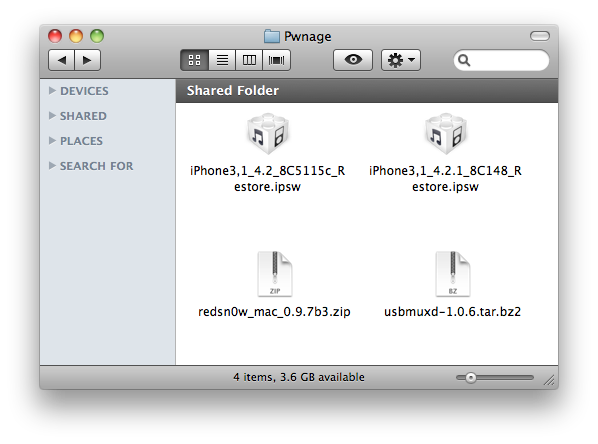
Create a folder on your desktop called Pwnage

Download RedSn0w from 0.9.9b1 here and place it in the Pwnage folder.

Extract the RedSn0w zip file into the same folder.


Step Two
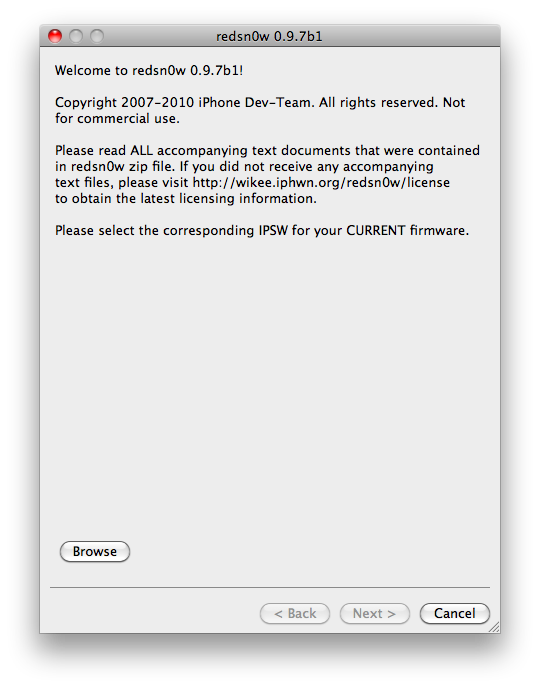
Launch the redsn0w application from the redsn0w folder we just extracted.


**Windows 7 users should run the redsn0w executable mode as an administrator in Windows Vista compatibility mode. You can do this by right clicking the executable and selecting Properties from the contextual menu.


Step Three
Once RedSn0w opens click the Extras button


Step Four
Click the SHSH blobs button from the Extras menu.


Step Five
Click the Fetch button to fetch the SHSH blobs on your device and send them to the Cydia server for storage.


Step Six
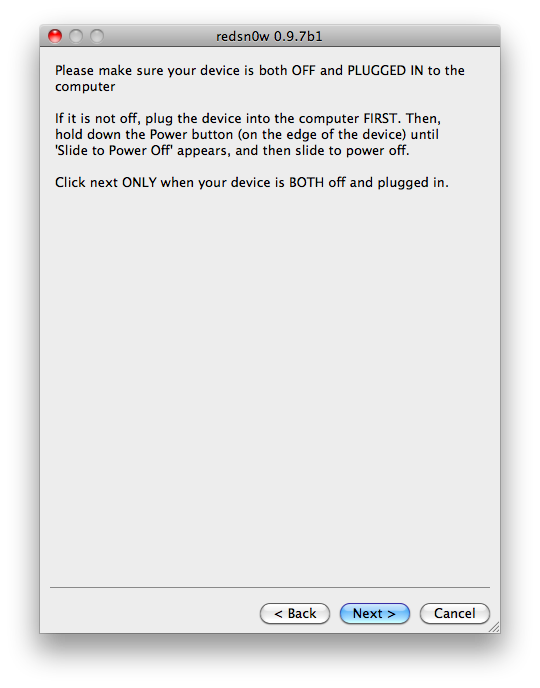
Please plug your iPhone into the computer and make sure its OFF then click the Next button


Step Seven
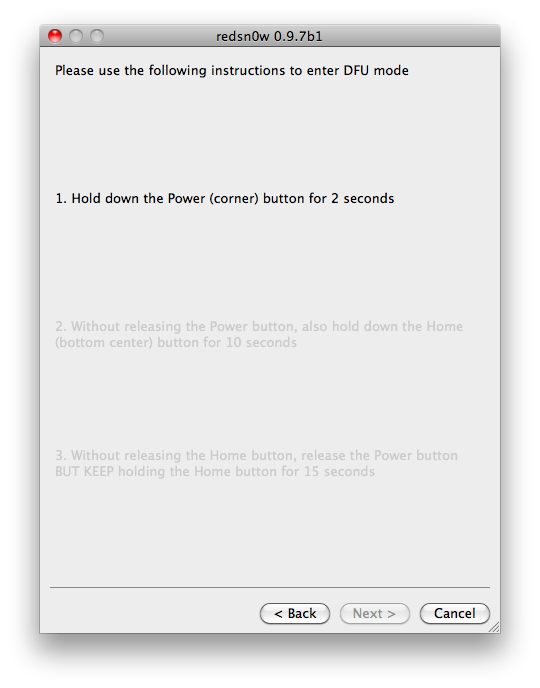
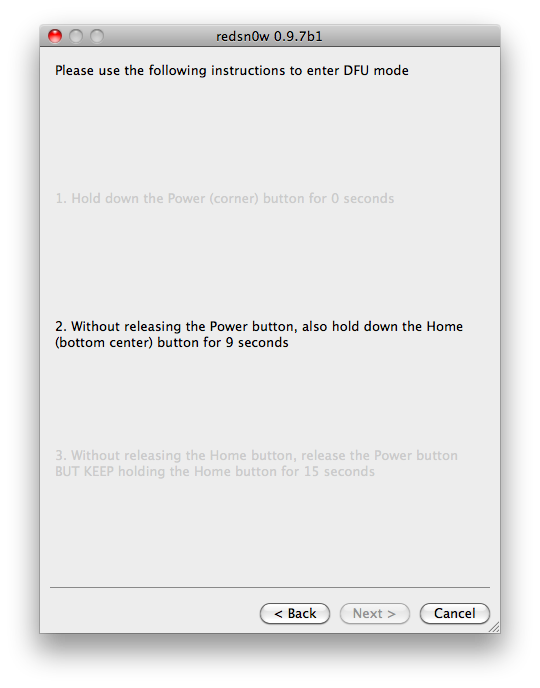
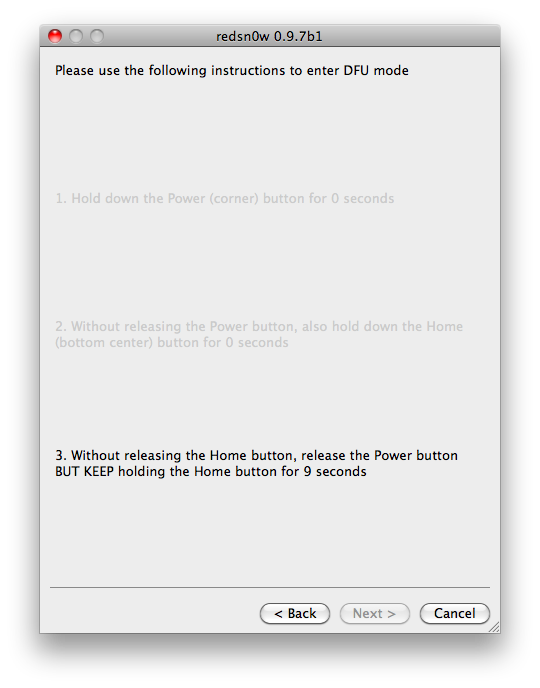
RedSn0w will now guide you through the steps to get into DFU mode. You can find more help with DFU mode here


Hold down both the Home button and the Power button for 10 seconds.


Release the Power button and continue holding the Home button until RedSn0w detects the device.


Step Eight
Your iPhone will now reboot


Step Nine
RedSn0w will then begin fetch the SHSH blobs from your device and submit them to Cydia.


Step Ten
Once this is complete you will be notified that your submission was a success. Click the Back button to return to RedSn0w.


Step Eleven
Click the SHSH blobs button and then click the Query button to make sure Cydia has your blobs saved.


Step Twelve
Enter * into the ECID textfield and click OK to check all your devices.


Step Thirteen
RedSn0w will now query Cydia and display the list of stored blobs.


Important:
RedSn0w also saves your blobs in a plist located within the RedSn0w folder. We would recommend keeping these for added safety.


You can follow Limerain on Twitter, Facebook, or RSS to be notified of any updates.

*thanks iclarified*

 Send us a story or tip @ TipsForLimerain.com@gmail.com and follow our pages for the latest limera1n, rubyra1n, and all tech stories, follow us on Twitter at @iphonepixelpost or @limerain_com
And like our Facebook page www.iPodSets.com
- Posted using my iPhone 4

Wednesday, September 7, 2011

How to Redeem Promo Codes and Free Apps on the iPhone, iPod touch, and iPad


Step1:Tap on the AppStore icon on your homescreen:


Step2: Navigate to the Featured Page(first tab on bottom panel:


Step3: Scroll down to the bottom and press Redeem:


Step4: Type in the App promo code and press Redeem button on top right corner:


Send us a story or tip @ TipsForLimerain.com@gmail.com and follow our pages for the latest limera1n, rubyra1n, and all tech stories, follow us on Twitter at @iphonepixelpost or @limerain_com
And like our Facebook page www.iPodSets.com
- Posted using my iPhone 4

Tuesday, April 12, 2011

CutYourSim claims permanent iPhone unlock solution without jailbreaking


CutYourSim, a company that makes SIM cutters, is out with a service they claim permanently unlocks your GSM iPhone 4, 3GS and 3G – without the need for jailbreaking. It’s an “official iPhone unlock”, they explain, and will carry on forever. This lets you unlock your device for use with any carrier and update it to the latest iOS firmware and baseband without waiting for an unauthorized unlock to be released:

The unlock will work with any iPhone version, and any baseband version, no need to worry about updating to the latest version anymore.
The iPhone Dev-team seem to be endorsing this solution. It doesn’t come cheap and will set you back $169 per device. Best of all, the company says, the procedure won’t void your warranty. How’s that possible? MacStories.net offers one possible explanation. Read on…


The site speculates that CutYourSim must have found a way to access Apple’s database that holds unique IMEI numbers. It’s highly unlikely they hacked Apple’s own database, but they could have accessed it from a carrier’s online backend, the author explains.

From there, it’s a simple matter of whitelisting your device’s IMEI, which removes the lock on your device. If that’s the case, something tells me Apple will soon ask its carriers to tighten their online security in order to prevent unauthorized IMEI whitelisting. They might also send their legal sharks after CutYourSim.


*thanks 9to5Mac*

Our new Forum is now open here or on the top tabs marks Forums, please register and post.. For the latest limera1n, rubyra1n, and all tech stories, follow us on Twitter at @iphonepixelpost or @limerain_com www.iPodSets.com
- Posted using my iPhone 4

Sunday, January 23, 2011

iPhone Dev-Team Ports Monte Untether Back to iOS 4.1 SHSH Blobs


The iPhone Dev-Team has successfully ported their Monte untether back to the iOS 4.1 kernel.

Previously to untether your jailbreak using Monte you needed to have the iOS 4.2b3 SHSH blobs saved which was developer only. Now you will only need your iOS 4.1 SHSH blobs. The team is also working on porting Monte forward to iOS 4.3...

Ported Monte back to 4.1 kernel (SHSH blobs). Next step: porting it forward to 4.3beta!

MuscleNerd notes that the beauty of Monte is it doesn't expose any new exploits :) It makes the entire "wait until next FW" concern moot. Think of Monte as a "green" jailbreak. It recycles (for example) 4.1's exact JB exploit on 4.2.1 :) Waste no exploits.

We'll let you know when RedSn0w is updated with the new capabilities.

The Chronic Dev-Team is also packaging up an untether for iOS 4.2.1 that will not require SHSH Blobs.

Stay tuned for more information.


*thanks iclarified*

Our new Forum is now open here or on the top tabs marks Forums, please register and post..

For the latest limera1n, rubyra1n, and all tech stories, follow us on Twitter at
@iphonepixelpost or @limerain_com
www.iPodSets.com
- Posted using my iPhone 4

Tuesday, January 11, 2011

How to Search the Mac App Store for Apps to Open a Specific File Extension


These are instructions on how to search the Mac App Store for applications that can open a specific file extension.

Step One
Launch the Mac App Store by clicking its icon in your dock. If you do not have the Mac App Store installed then you will need to upgrade your OS to Snow Leopard 10.6.6.


Step Two
In the search field at the top right of the window input extension: followed by the file extension you would like to search for and press Enter. ie. "extension:psd"


Step Three
iTunes will now display a list of applications that are capable of opening that extension.


*thanks iclarified*

Our new Forum is now open here or on the top tabs marks Forums, please register and post..

For the latest limera1n, rubyra1n, and all tech stories, follow us on Twitter at
@iphonepixelpost or @limerain_com
www.iPodSets.com
- Posted using my iPhone 4

Sunday, January 9, 2011

How to Untether Your iOS Jailbreak (Mac) [4.2.1] Update


These are instructions on how to untether your jailbreak of iOS 4.2.1 using the iPhone Dev-Team's 'backup plan' method on Mac OS X.

Currently this beta is limited to iPhone4, iPad, and iPod touch 4G. Bluetooth functionality is disabled for the time being until some issues are resolved.

Requirements:
You will need to have access to the iOS 4.2b3 ipsw and your iOS 4.2b3 SHSH blobs saved. You also already need to be jailbroken on iOS 4.2.1. MAKE SURE YOU BACKUP BEFORE ATTEMPTING THIS AS IT IS A BETA!


Step One
Create a folder called Pwnage on your desktop and in it place:
- RedSn0w .0.7b5 from here.
- iOS 4.2.1 
(iPhone, iPad, iPod touch)
- iOS 4.2b3 *Only iPhone developers have legit access to this firmware


Step Two
Double click the RedSn0w archive to extract it. Then launch RedSn0w from the extracted folder.


Step Three
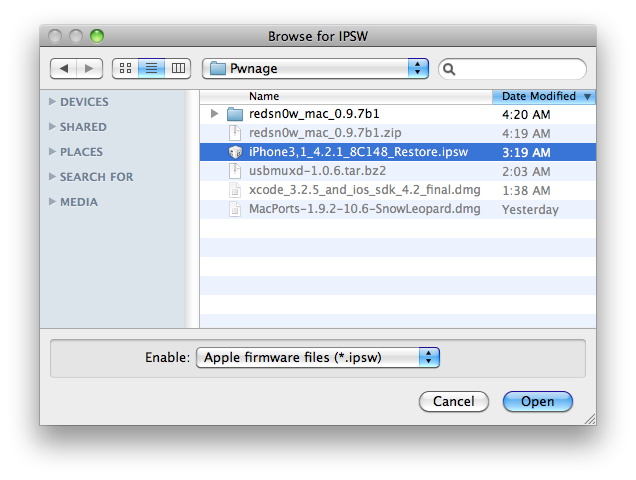
Click the Browse button


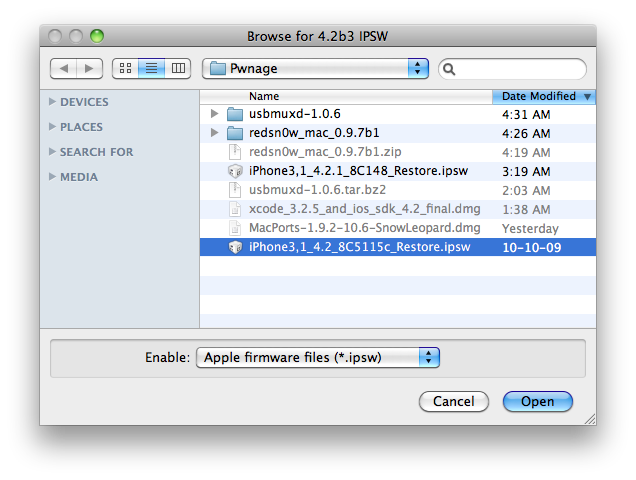
Select the iOS 4.2.1 ipsw from the Pwnage folder on your Desktop and click Open.


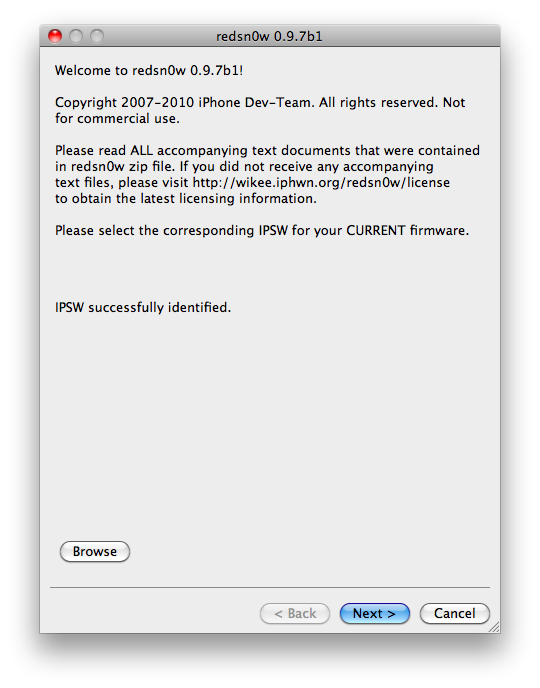
Click the Next button to continue.


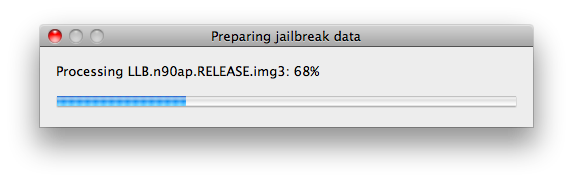
RedSn0w will now prepare the jailbreak data.


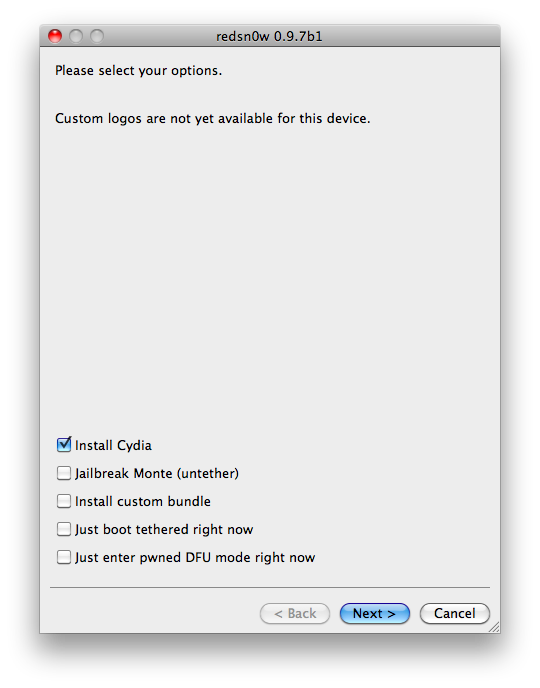
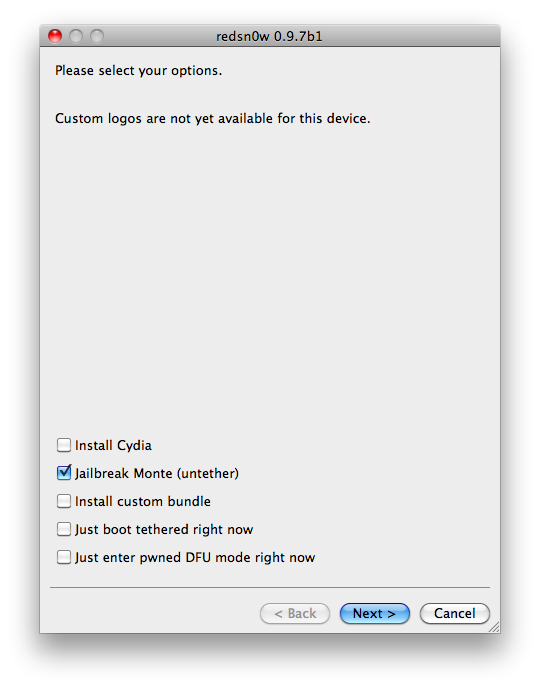
You will now be presented with a list of checkboxes. 


Select Jailbreak Monte (untether) from the list of checkboxes. You will be asked to select the iOS 4.2b3 ipsw from the Pwnage folder on your desktop then click Open. Click Next to continue.


Please plug your iPhone into the computer and make sure its OFF then click the Next button


RedSn0w will now guide you through the steps to get into DFU mode. You can find more help with DFU mode here


Hold down both the Home button and the Power button for 10 seconds.


Release the Power button and continue holding the Home button until RedSn0w detects the device.


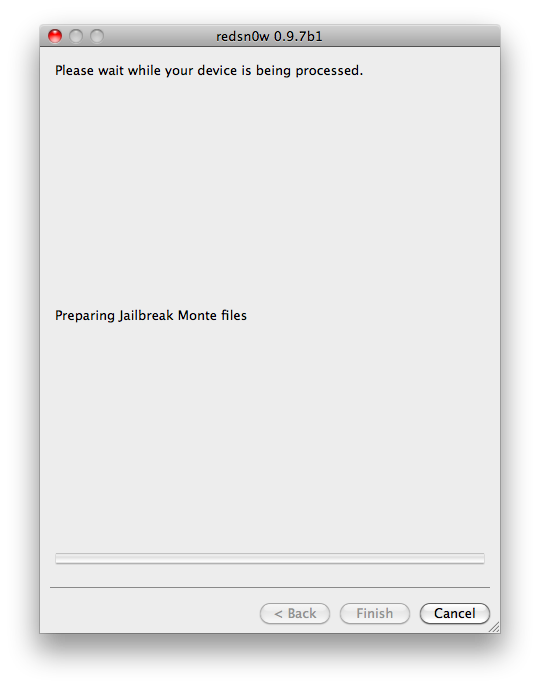
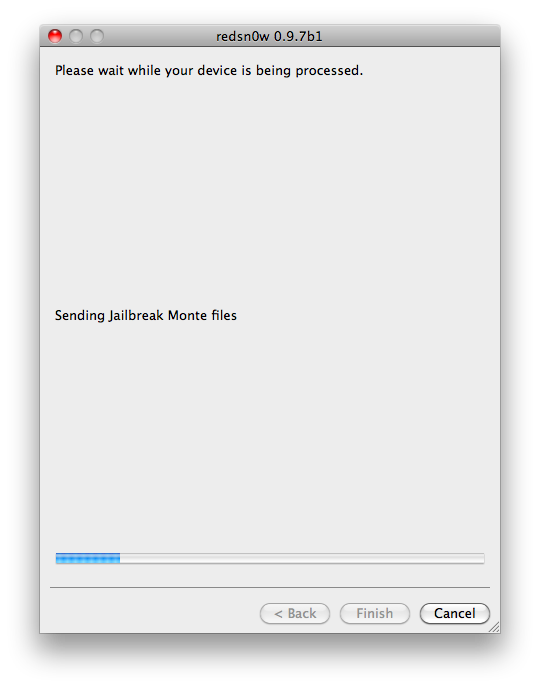
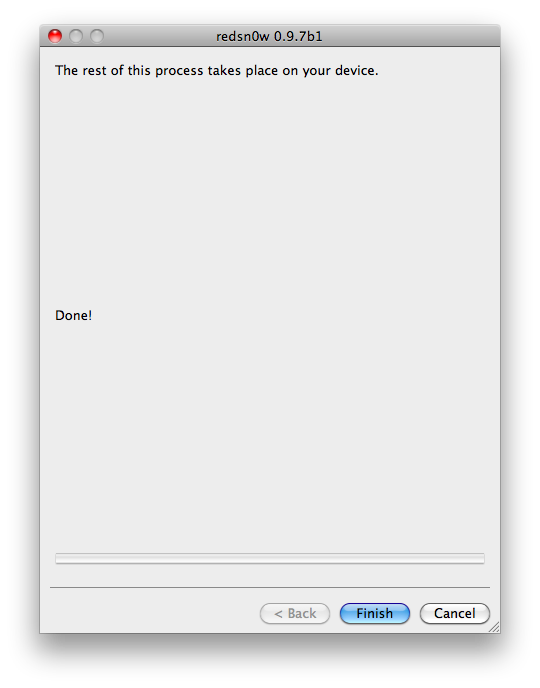
RedSn0w will prepare Jailbreak Monte files, exploit with Limera1n, Upload RAM Disk and Kernel, and Send Jailbreak Monte files.


RedSn0w will inform you when it has completed successfully.


*thanks iclarified*

Our new Forum is now open here or on the top tabs marks Forums, please register and post..

For the latest tech stories, follow us on Twitter at
@iphonepixelpost or @limerain_com
www.iPodSets.com
- Posted using my iPhone 4

Wednesday, January 5, 2011

AirPlay Comes to the Original AppleTV


Firecore has just announced that thanks to Remote HD, the 1st gen AppleTV is now able to act as an AirPlay compatible device

How does it work?
1. If you don't already have Remote HD purchase it here [iTunes link].
2. Install Remote HD on your AppleTV through the Maintenance --> Install Extras menu.
3. Restart your AppleTV.
4. Connect to your AppleTV with Remote HD - the AppleTV will now be recognized in all AirPlay compatible applications.

What can I stream?
* Video, YouTube, video podcasts, and photos from iOS devices.
* Video, and video podcasts from iTunes.
* Video from other 3rd party apps if your iOS devices is modified to do so.
* Audio streaming coming soon.

Try it out and let us know how well this works for you. You will need to have a jailbroken AppleTV.


*thanks iclarified*

Our new Forum is now open here or on the top tabs marks Forums, please register and post..

For the latest limera1n, rubyra1n, and all tech stories, follow us on Twitter at
@iphonepixelpost or @limerain_com
www.iPodSets.com
- Posted using my iPhone 4