Showing posts with label jailbreak iphone 3gs. Show all posts

Monday, July 11, 2011

JailbreakMe Update Now Available as 'Essential Upgrade' in Cydia


Comex has released an update to JailbreakMe as an 'Essential Upgrade' that can be installed via Cydia, saurik reports.

So, @comex made some fixes to the kernel patches for JailbreakMe, and we are pushing them as an "Essential Upgrade"... I hope this works! :(

To be clear: do /not/ go back to jailbreakme.com and "redo" the jailbreak; instead, just open Cydia, and accept the new "Essential Upgrade".

This update should fix the issue with the Camera Connection Kit that we reported on earlier.

If you haven't already jailbroken your device you can find instructions on how to do so here:
iPhone
iPad
iPod touch


*thanks iclarified*

Send us a story or tip @ TipsForLimerain.com@gmail.com and follow our pages for the latest limera1n, rubyra1n, and all tech stories, follow us on Twitter at @iphonepixelpost or @limerain_com
And like our Facebook page www.iPodSets.com
- Posted using my iPhone 4

Tuesday, April 19, 2011

How to Jailbreak Your iPod Touch 4G Using RedSn0w (Mac) [4.3.2]


These are instructions on how to jailbreak your iPod touch 4G on the 4.3.2 firmware using RedSn0w for Mac.

If you want to jailbreak a lower firmware version you can find the appropriate tutorial here.

Step One
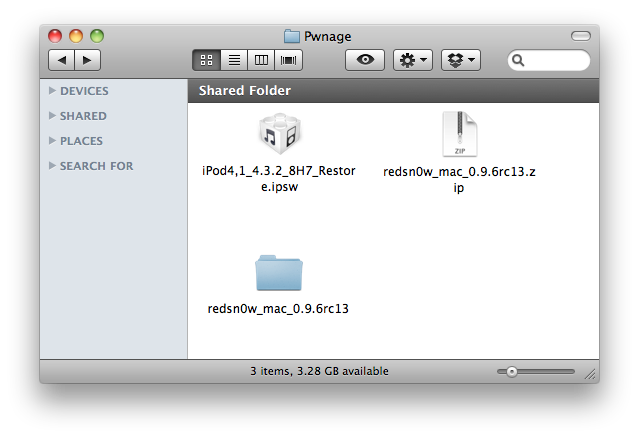
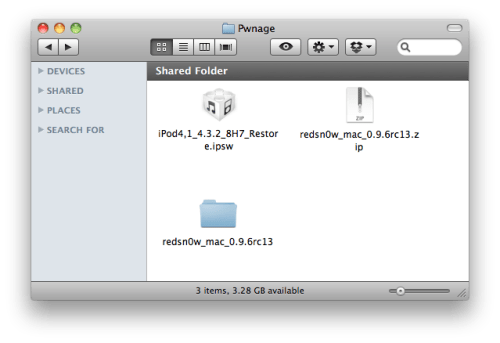
Create a folder on your desktop called Pwnage

Download RedSn0w from here and place it in the Pwnage folder. Likewise, download the latest 4.3.2 firmware from below and place it in the same folder.

4.3.2 (4G): iPod4,1_4.3.2_8H7_Restore.ipsw

Extract the RedSn0w zip file by double clicking it.

Step Two
Connect your iPod to the computer and launch iTunes.


Select your iPod from the list of devices on the left. Now hold down Option and click the Restorebutton. Restore is preferred as it won't create any wasted space on your iPod.


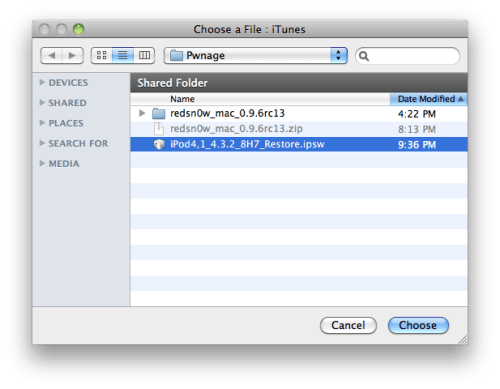
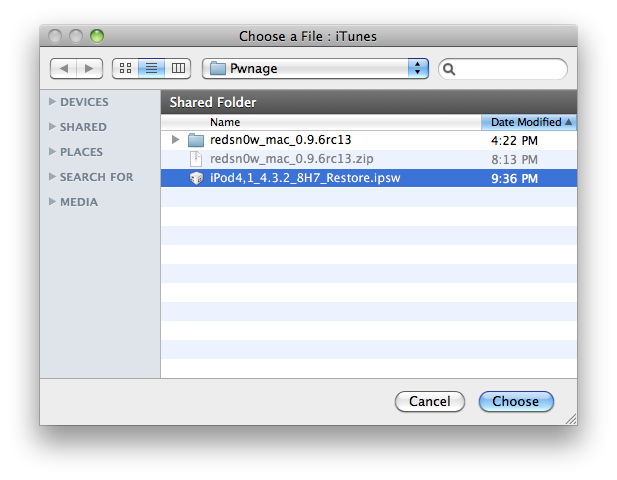
Navigate to the Pwnage folder on your desktop and select the 4.3.2 firmware ipsw. Click theChoose button to continue.


Step Three
Once iTunes has finished updating your iPod to the desired firmware open the Pwnage folder on your desktop and launch the redsn0w application from the redsn0w folder we extracted earlier.


Step Four
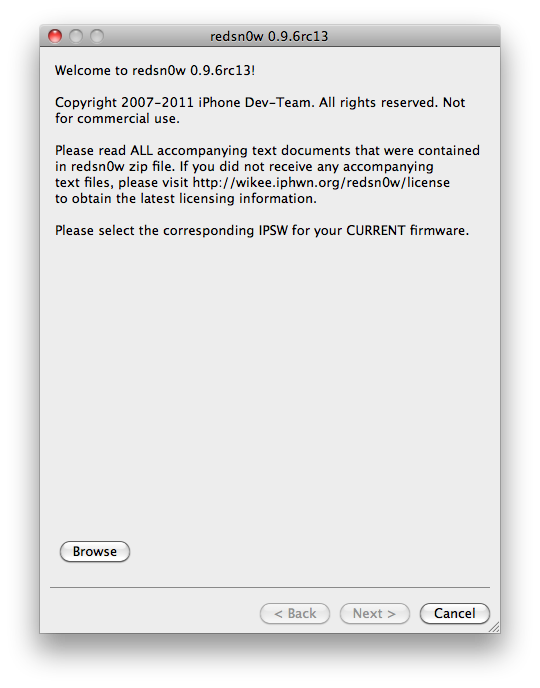
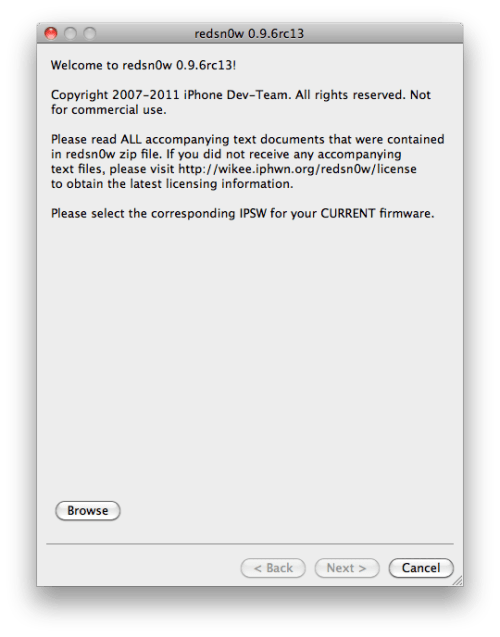
Once RedSn0w opens click the Browse button

Step Five
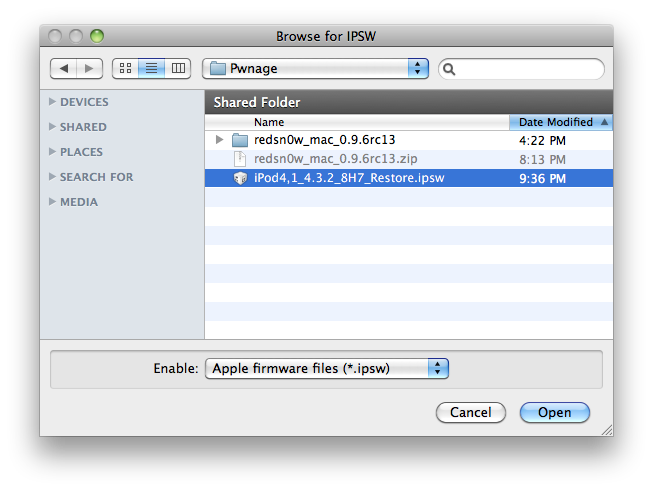
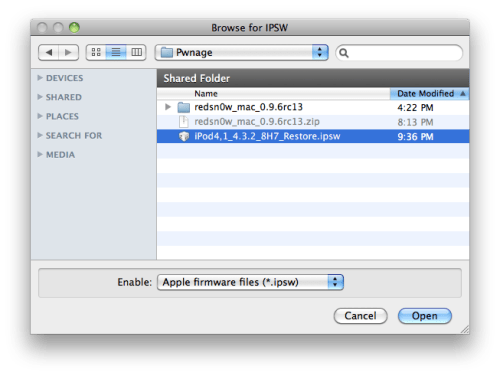
Select the 4.3.2 firmware ipsw we placed in the Pwnage folder on our desktop then click Open.

Step Six
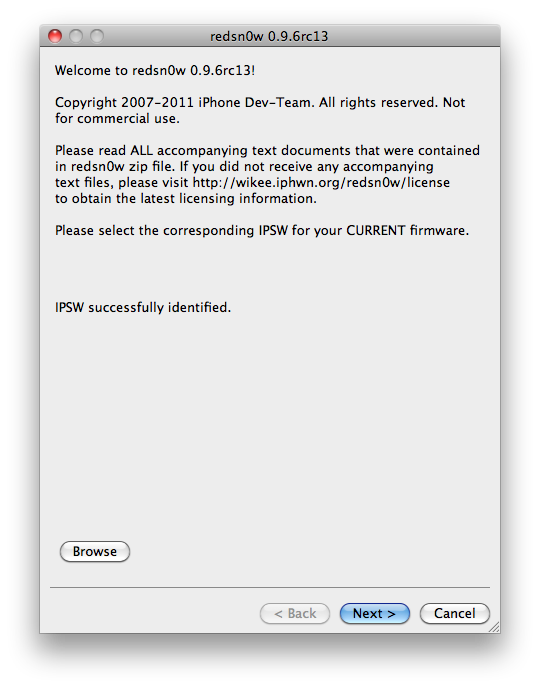
Once the firmware has been verified click the Next button to continue.
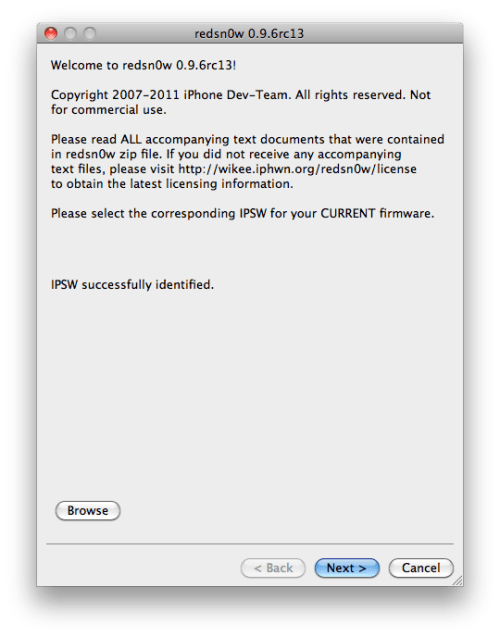

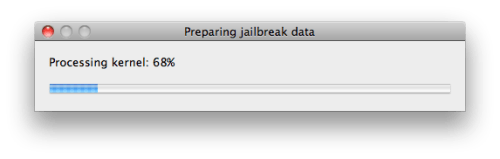
Step Seven
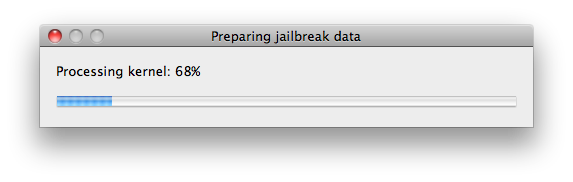
RedSn0w will now prepare the jailbreak data

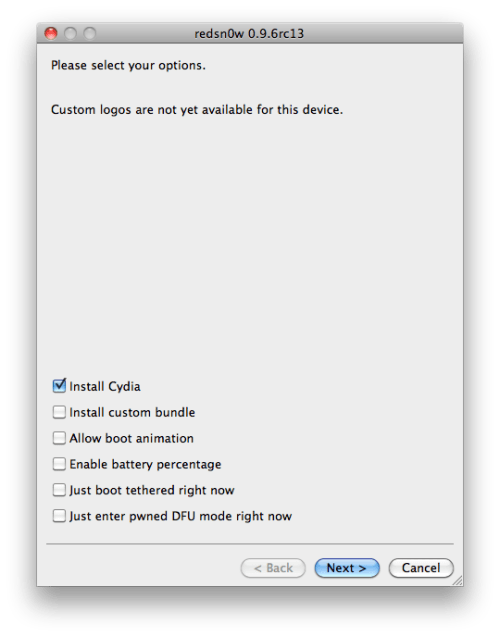
Step Eight
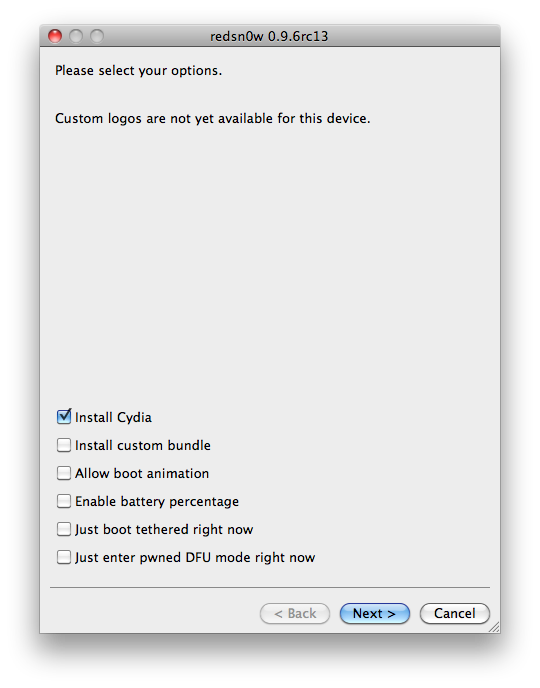
From this window you can select the jailbreak options you would like.

Make sure Cydia is selected and click the Next button to continue.

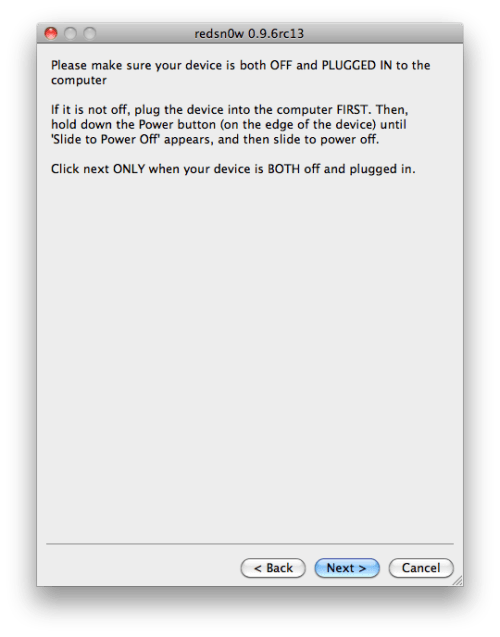
Step Nine
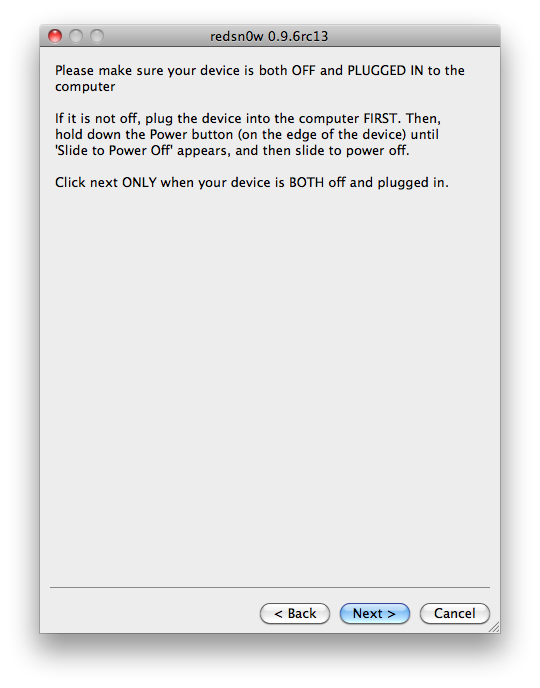
Please plug your iPod into the computer and make sure its OFF then click the Next button

Step Ten
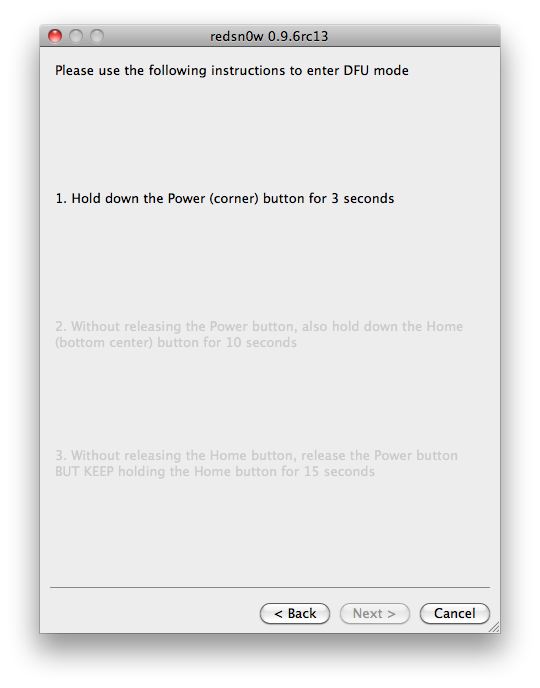
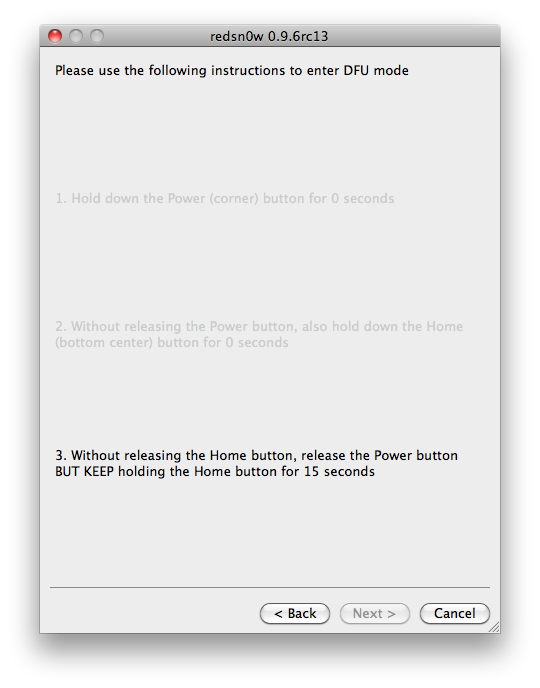
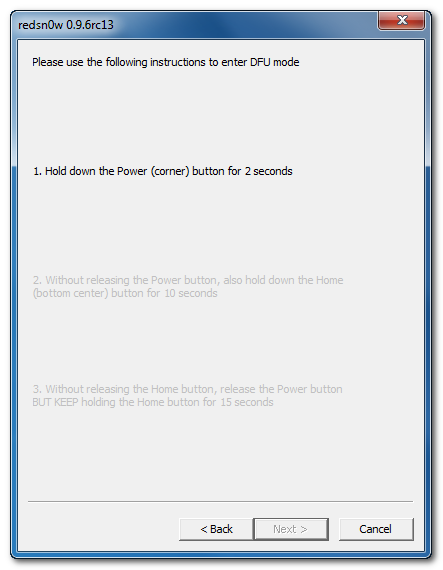
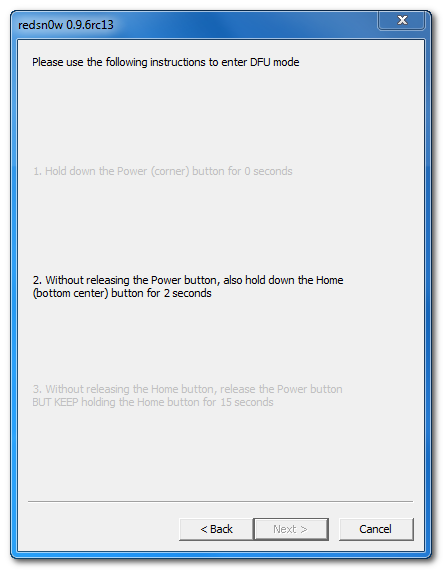
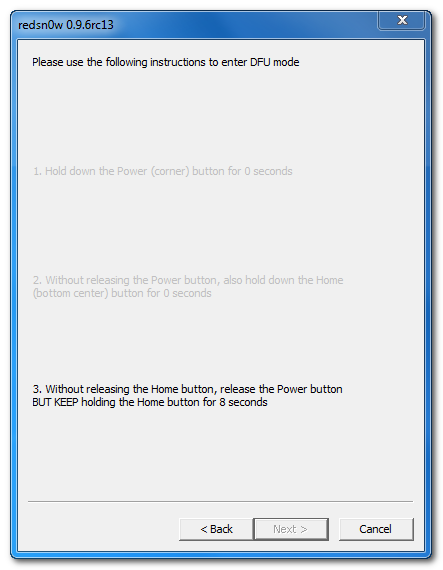
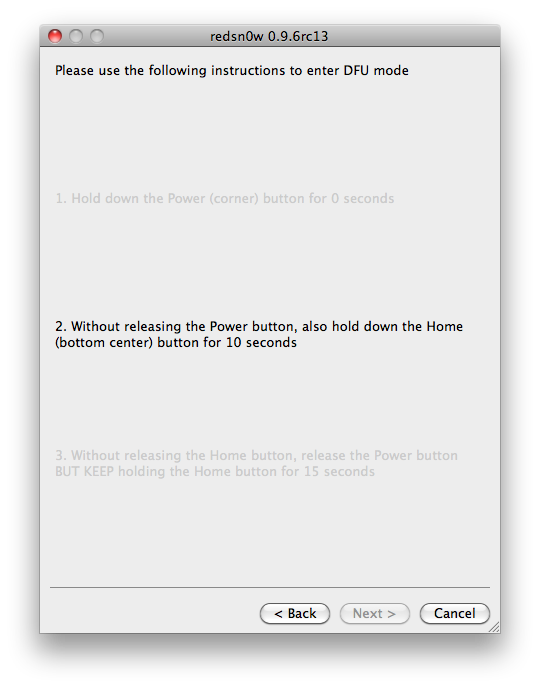
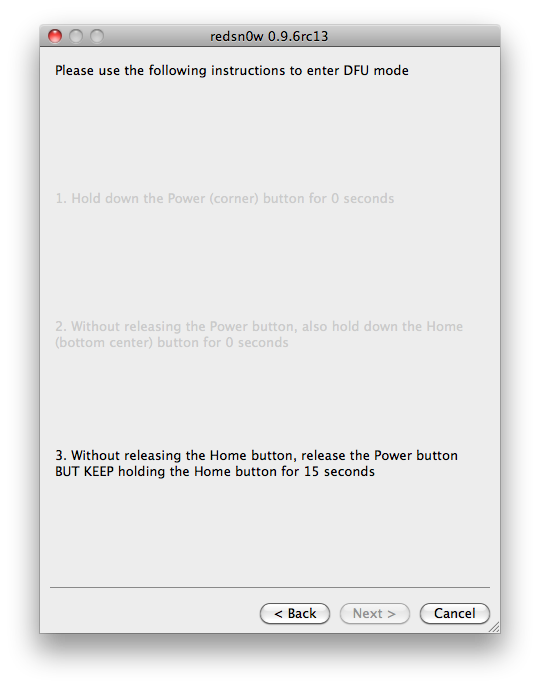
RedSn0w will now guide you through the steps to get into DFU mode. You can find more help with DFU mode here
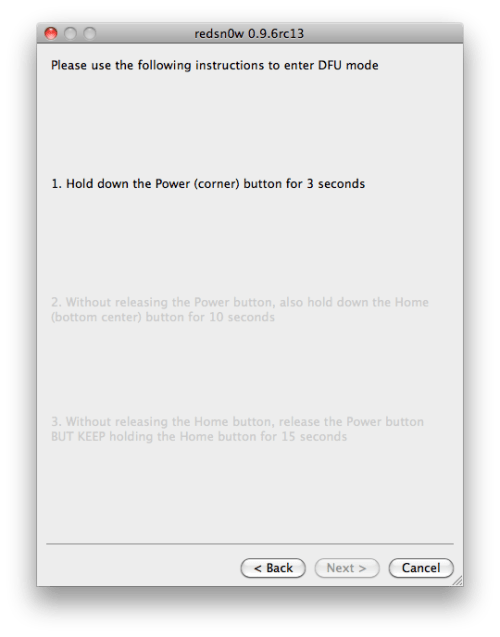

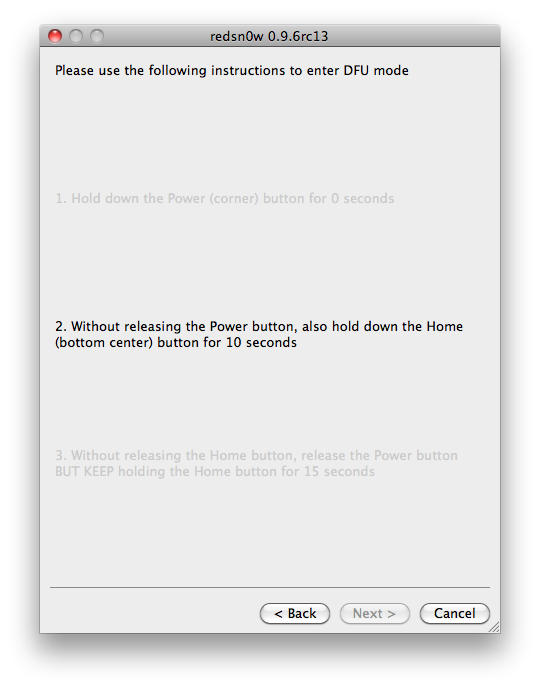
Hold down both the Home button and the Power button for 10 seconds.
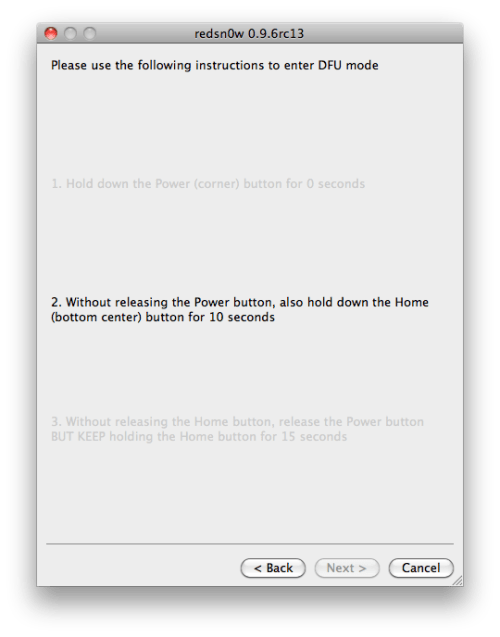

Release the Power button and continue holding the Home button until RedSn0w detects the device.
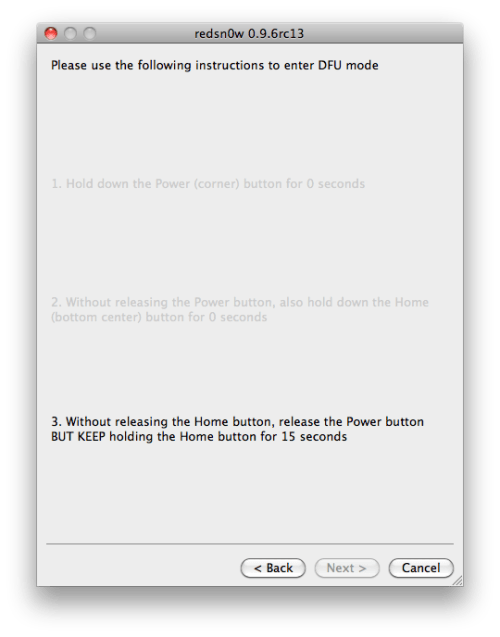

Step Eleven
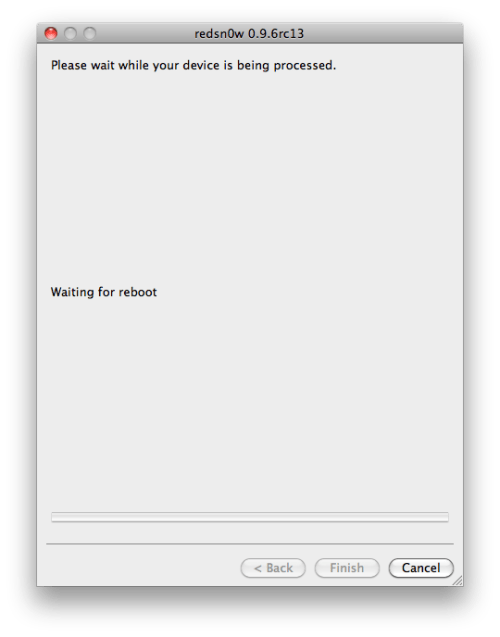
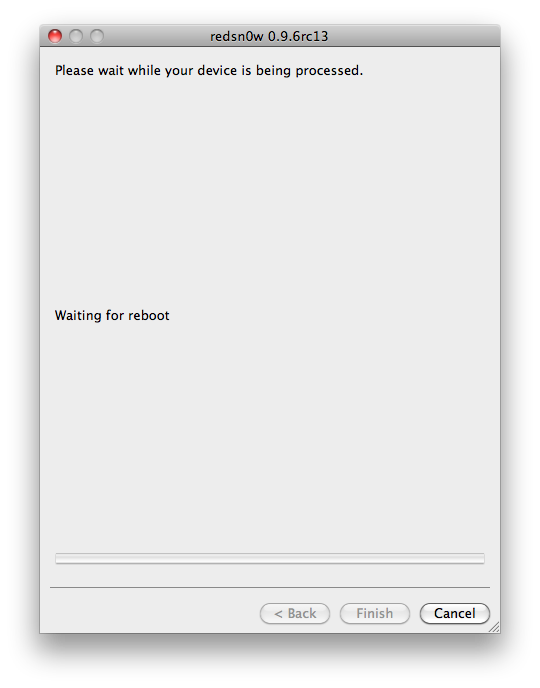
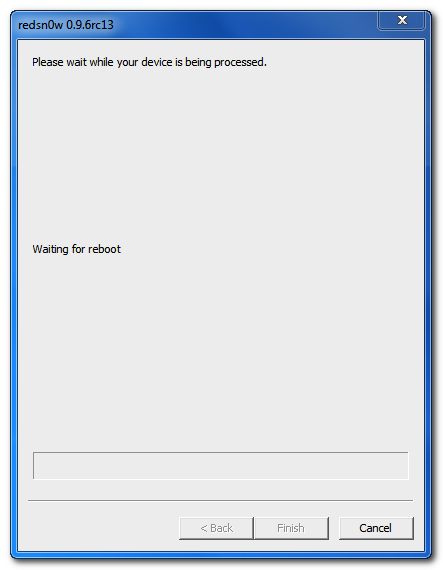
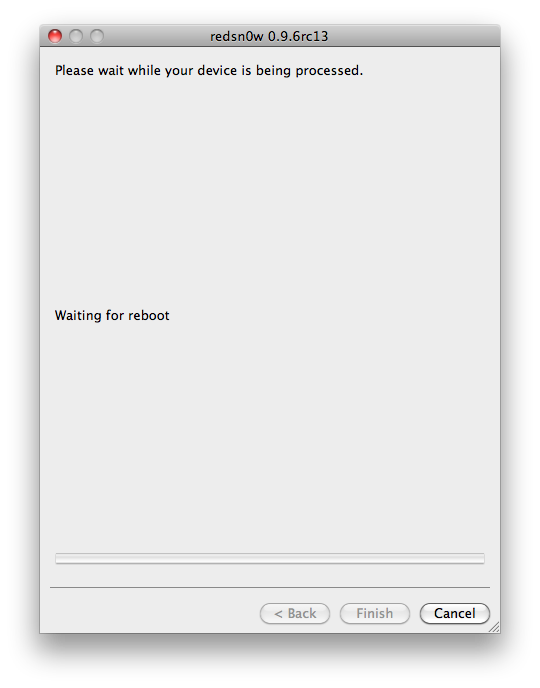
Your iPod will now reboot


Step Twelve
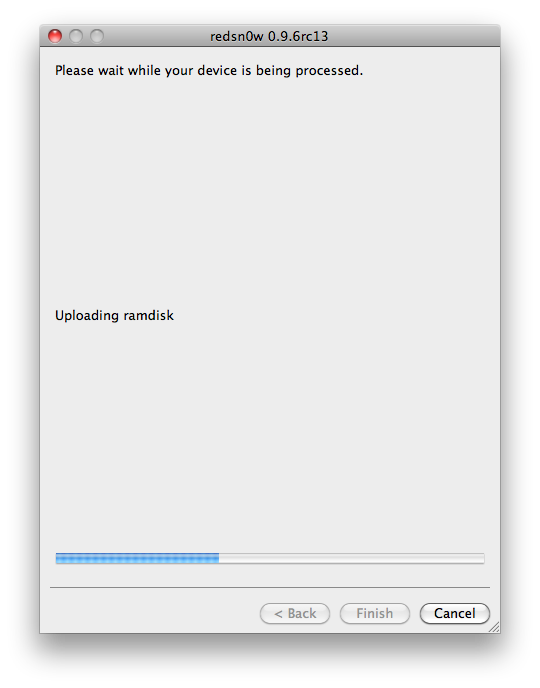
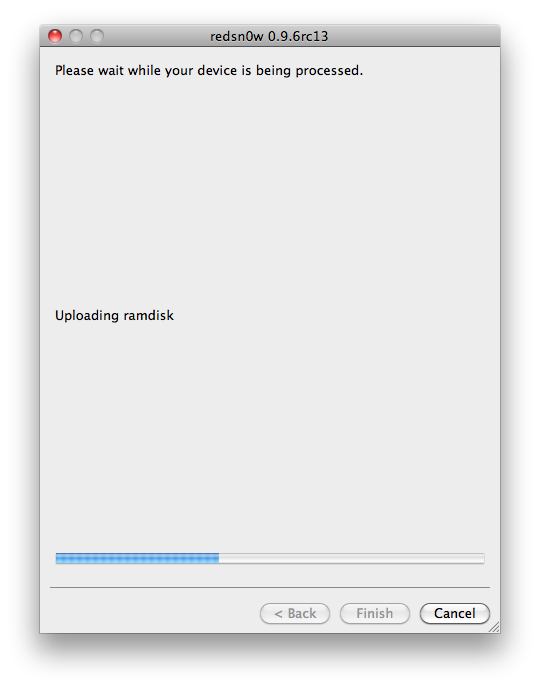
RedSn0w will then begin uploading the new RAM Disk and Kernel.
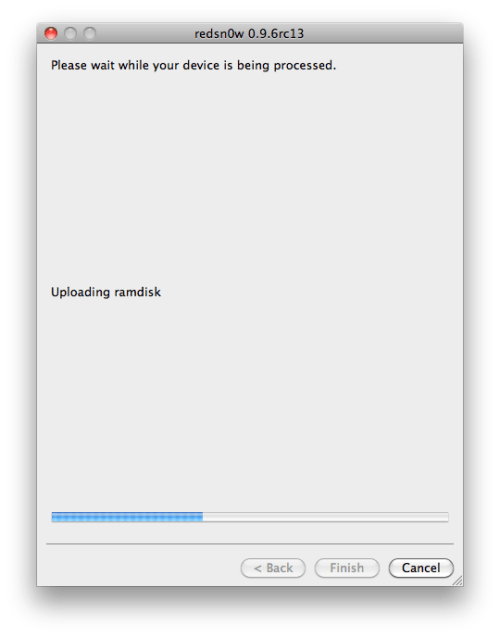

Step Thirteen
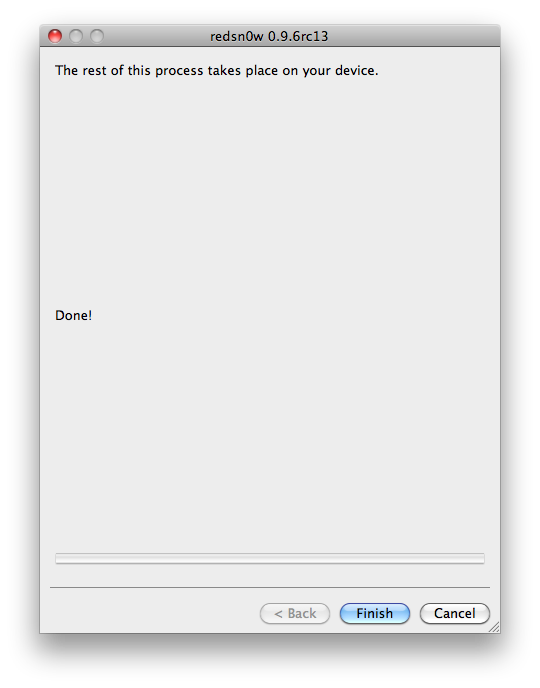
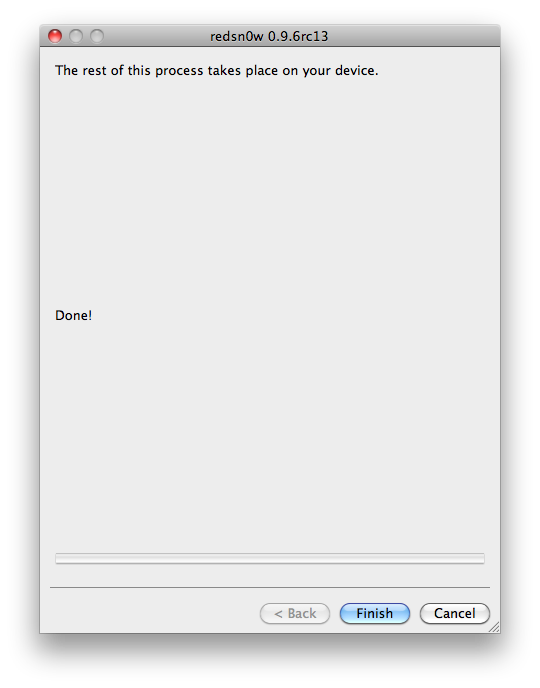
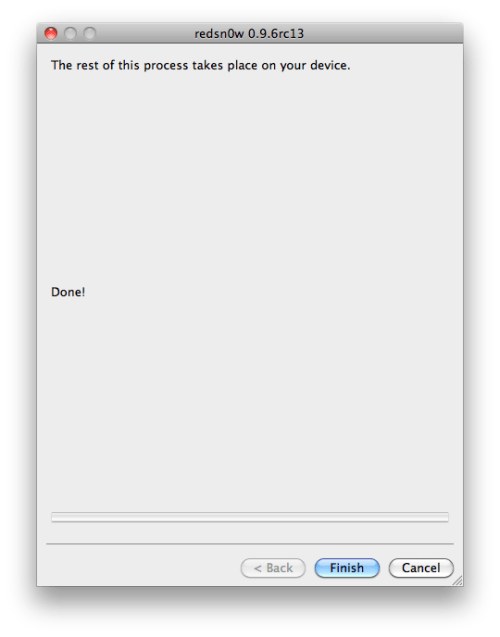
Once this is complete you will be notified that RedSn0w is done. Click the Finish button. When your iPod finishes rebooting (5 minutes or so) it will be jailbroken with Cydia on the SpringBoard.

*As usual a big thanks to the iPhone Dev-Team and I0n1c for their hard work and contribution to the iPhone community.


*thanks iclarified*

Our new Forum is now open here or on the top tabs marks Forums, please register and post.. For the latest limera1n, rubyra1n, and all tech stories, follow us on Twitter at @iphonepixelpost or @limerain_com www.iPodSets.com - Posted using my iPhone 4

How to Jailbreak Your iPhone 3GS Using RedSn0w (Windows) [4.3.2]

These are instructions on how to jailbreak your iPhone 3GS on the 4.3.2 firmware using RedSn0w for Windows. The Mac version of this tutorial is here.

Make sure not to update to iOS 4.3.2 if you need an unlock as one is not yet available unless you opt to use the iPad baseband.

IMPORTANT FOR UNLOCKERS
During this process you can update your baseband to the 06.15 version. If you are on 05.14 or 05.15 or higher you will need to do this to unlock. You do not need to do this for jailbreak only. Please read the following very carefully before deciding whether to do this. You can find out baseband version here.
1. There is no way to come back down from 06.15, and there’s no hiding the baseband version from Apple. You’ll be voiding your warranty in a very obvious way.
2. If some future baseband comes out with a critical fix, you won’t be able to update to it if it remains down in the 05.xx sequence (then again, you wouldn’t update to it if you wanted to keep your unlock anyway).
3. Starting with FW 4.2.1 if you have 06.15 on your iPhone you won’t ever be able to restore to stock firmware (it will fail). You’ll need to only restore to custom IPSWs (then again, if you’re unlocker you should already be doing that).
4. There are reports that 06.15 may disable your GPS. The iPhone Dev-Team is currently working on a fix.

Don’t update to 06.15 if you don’t need to! Only do this if you need the unlock and you’re stuck on 05.14 or 05.15, and you're willing to assume the above risks. If your baseband is already unlockable and you are on a lower firmware version then use PwnageTool to update to 4.3.2 without upgrading your baseband.


Step One
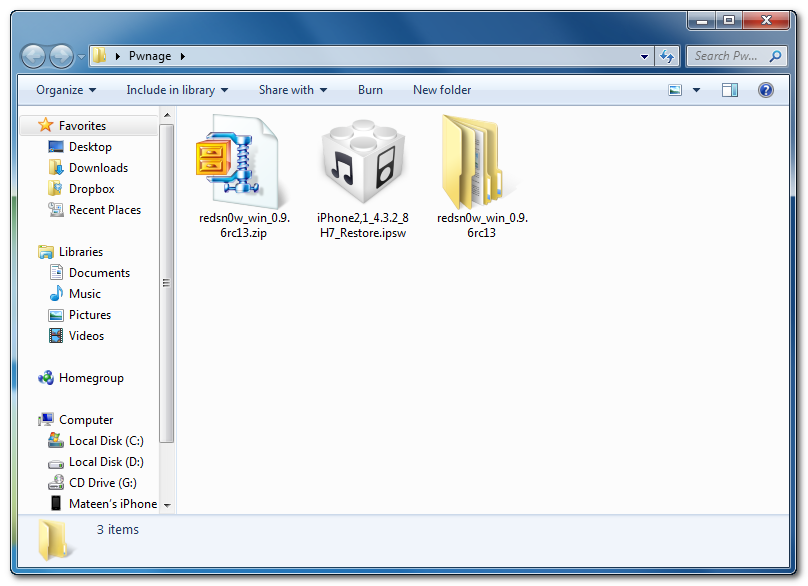
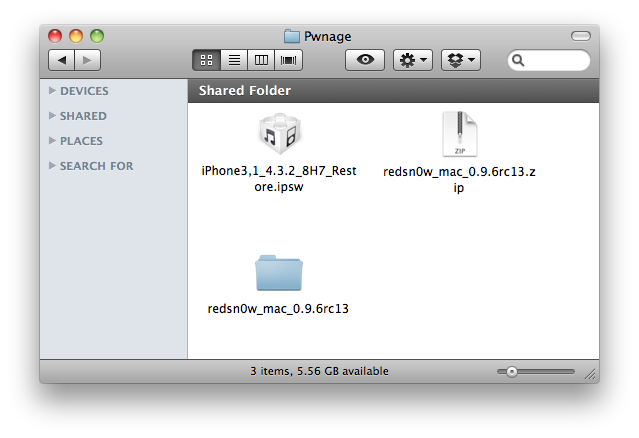
Create a folder on your desktop called Pwnage

Download RedSn0w from here and place it in the Pwnage folder. Likewise, download the latest 4.3.2 firmware from below and place it in the same folder. 

4.3.2 (3GS): iPhone2,1_4.3.2_8H7_Restore.ipsw

Extract the RedSn0w zip file into the same folder.


Step Two
Connect your iPhone to the computer and launch iTunes. 


Select your iPhone from the list of devices on the left. Now hold down Shift and click the Restorebutton. Restore is preferred as it won't create any wasted space on your iPhone.


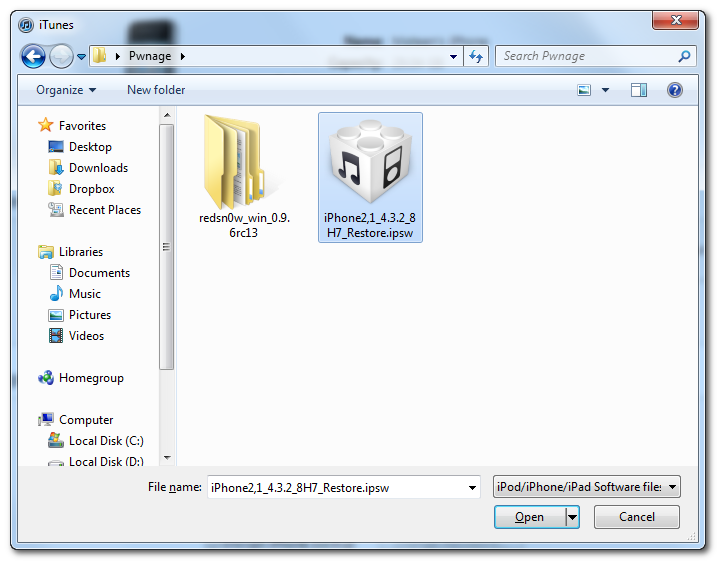
Navigate to the Pwnage folder on your desktop and select the 4.3.2 firmware ipsw. Click the Openbutton to continue. 


Step Three
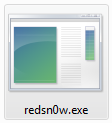
Once iTunes has finished updating your iPhone to the desired firmware open the Pwnage folder on your desktop and launch the redsn0w application from the redsn0w folder we extracted earlier.


Step Four
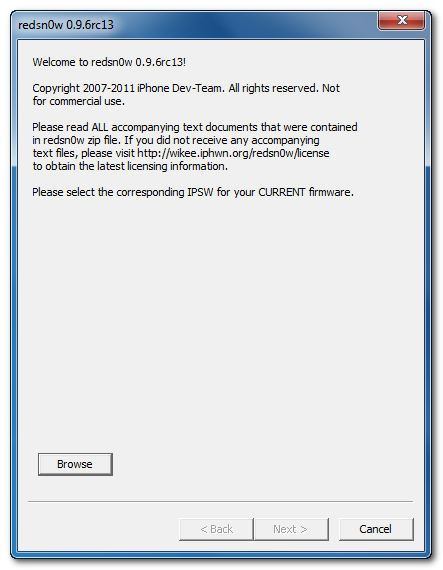
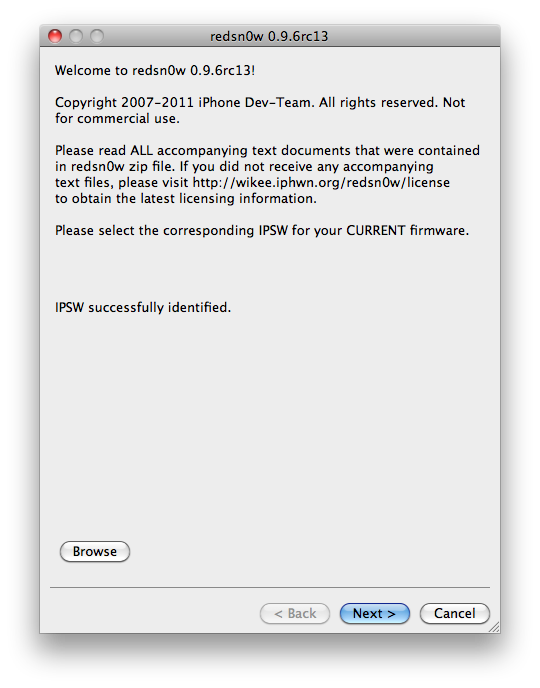
Once RedSn0w opens click the Browse button


Step Five
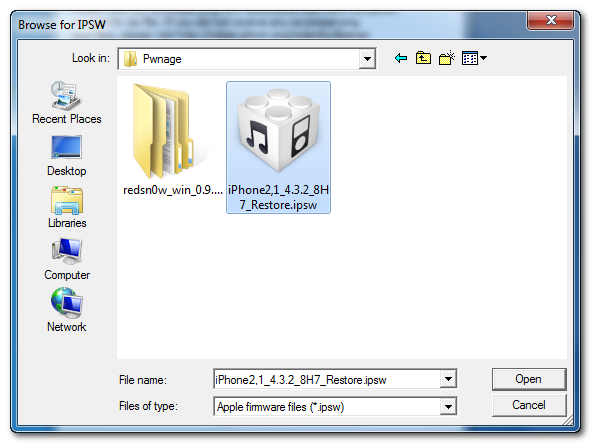
Select the 4.3.2 firmware ipsw we placed in the Pwnage folder on our desktop then click Open


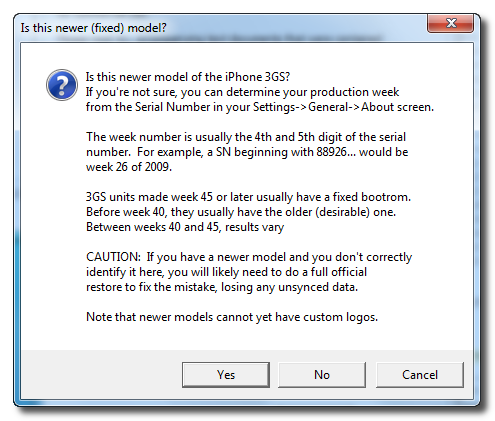
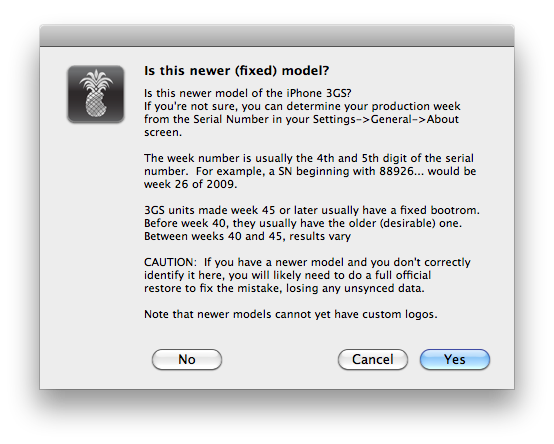
You will be asked if this device is a newer fixed model. If yours is then click the Yes button; otherwise, click the No button. 


Step Six
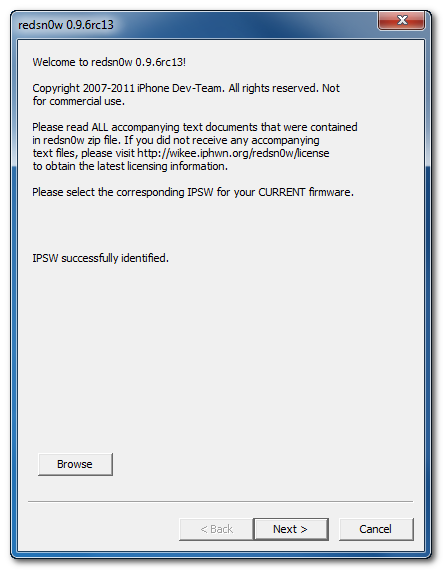
Once the firmware has been verified click the Next button to continue.


Step Seven
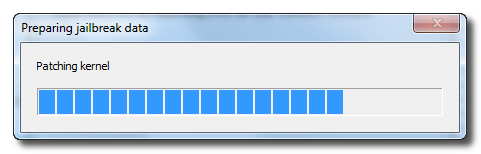
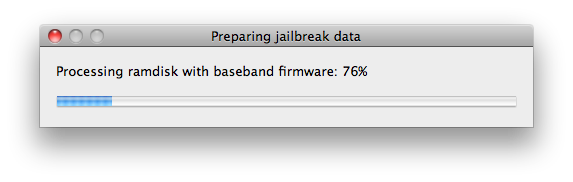
RedSn0w will now prepare the jailbreak data


Step Eight
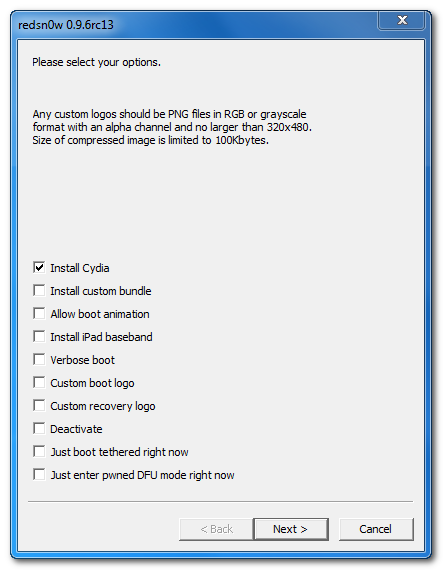
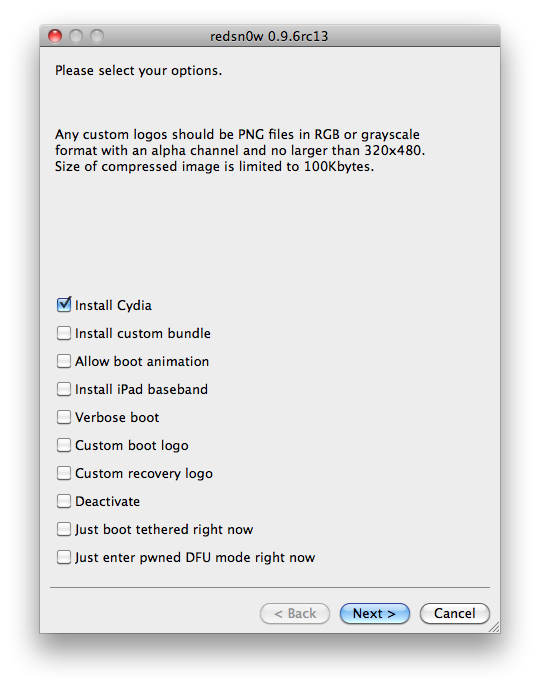
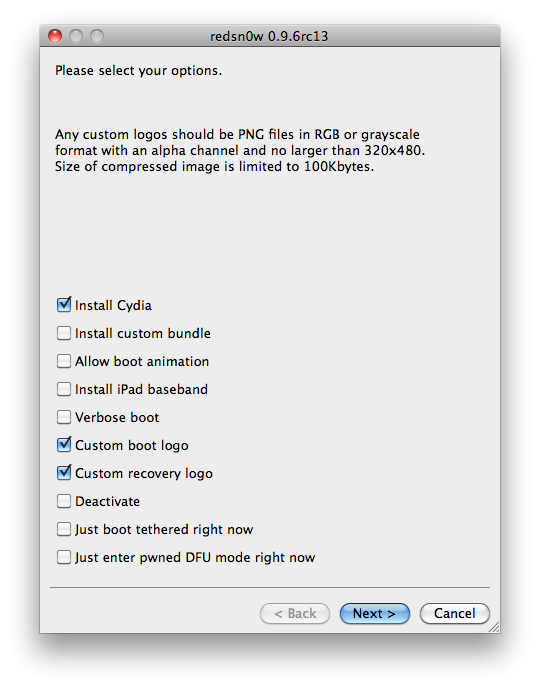
From this window you can select the jailbreak options you would like.


Verbose boot displays detailed information on boot of your device and is generally only needed by developers and advanced users.

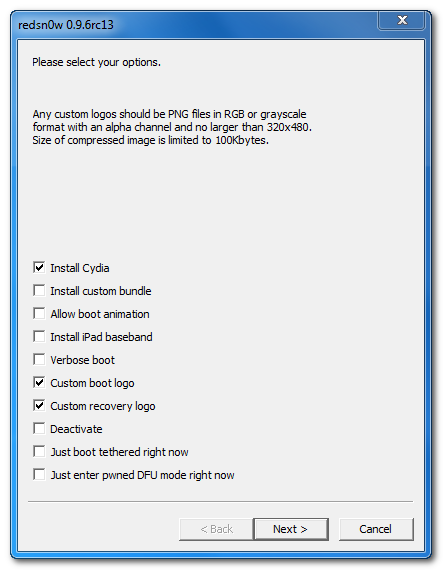
Make sure Cydia is selected. For this tutorial we will also select Custom boot logo and Custom recovery logo.

When you click to select each custom logo option a dialog window will appear asking you to select the image. Locate the image you would like to use then press the Open button.


*Remember the rules for boot logos are: RGB or Grayscale format with Alpha channel and dimension below 320x480. If you would like to use the Limerain ones they can be found here: Boot LogoRecovery Logo

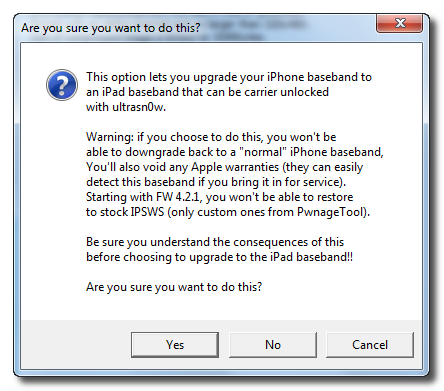
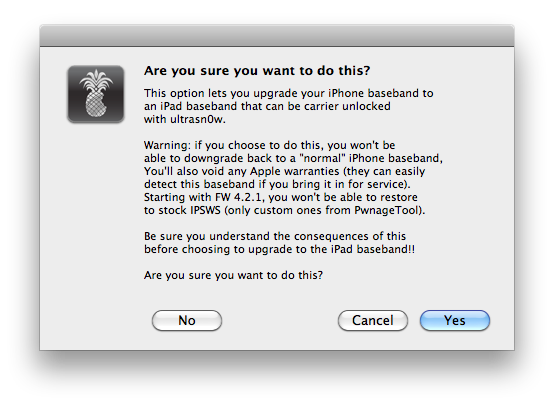
If you read the warning above and you would like to update your baseband to the 06.15 iPad version for unlock then check Install iPad Baseband. Click Yes when prompted to confirm your decision.


Click the Next button to continue


Step Nine
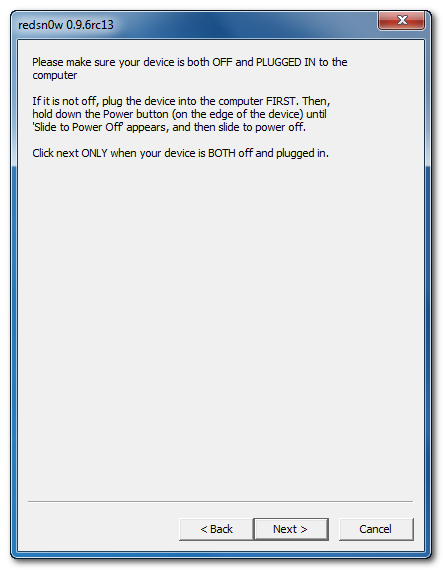
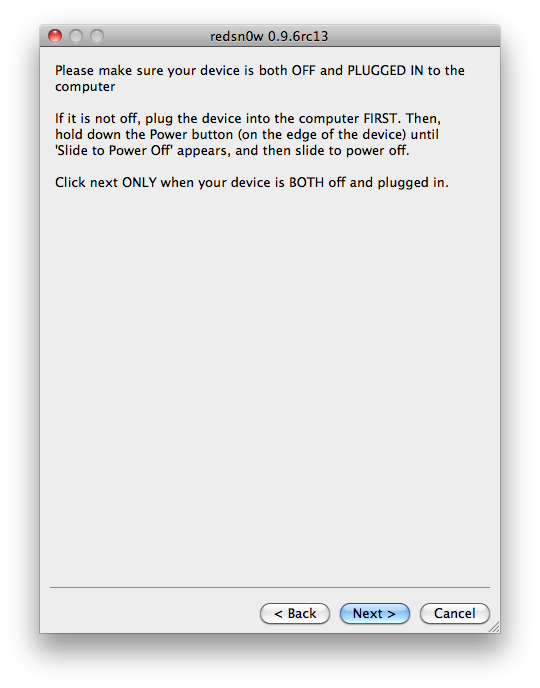
Please plug your iPhone into the computer and make sure its OFF then click the Next button


Step Ten
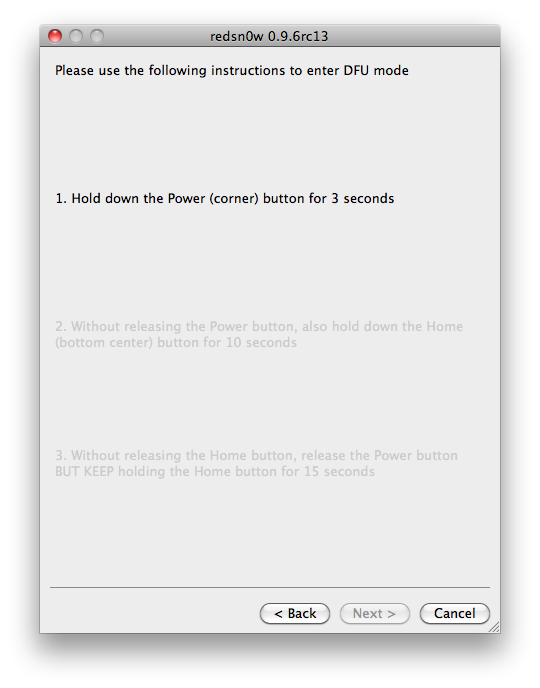
RedSn0w will now guide you through the steps to get into DFU mode. You can find more help with DFU mode here


Hold down both the Home button and the Power button for 10 seconds.


Release the Power button and continue holding the Home button until RedSn0w detects the device.


Step Eleven
Your iPhone will now reboot


Step Twelve
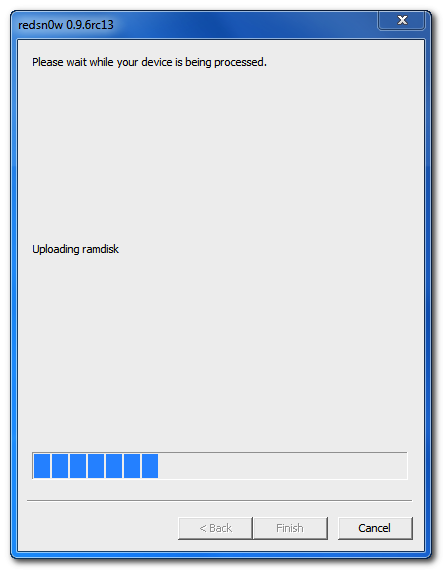
RedSn0w will then begin uploading the new RAM Disk and Kernel.


Step Thirteen
Once this is complete you will be notified that RedSn0w is done. Click the Finish button. When your iPhone finishes rebooting (5 minutes or so) it will be jailbroken with Cydia on the SpringBoard.


*As usual a big thanks to the iPhone Dev-Team and I0n1c for their hard work and contribution to the iPhone community.
**Windows 7 users can try running RedSn0w as an administrator in Windows Vista or XP compatibility mode if you experience any difficulties.

*thanks iclarified*

Our new Forum is now open here or on the top tabs marks Forums, please register and post.. For the latest limera1n, rubyra1n, and all tech stories, follow us on Twitter at @iphonepixelpost or @limerain_com www.iPodSets.com - Posted using my iPhone 4https://blogger.googleusercontent.com/img/b/R29vZ2xl/AVvXsEgxORWKNOFwCEaNoc4W3HZUUtr8g-m8Yq0Rt2dJrgenuZOHAXRbPFtplzOc3MxgYKXQFRWj8JrubijmGF3Cbht1hgetiPft9HW1x8Vvya49A_XjzkR2TNFXD9nnOI4JTvrUzAsyX_U22e8O/s200/limerain+recovery+logo.png

How to Jailbreak Your iPhone 3GS Using RedSn0w (Mac) [4.3.2]

These are instructions on how to jailbreak your iPhone 3GS on the 4.3.2 firmware using RedSn0w for Mac.

If you want to jailbreak a lower firmware version you can find the appropriate tutorial here.

Make sure not to update to iOS 4.3.2 if you need an unlock as one is not yet available unless you opt to use the iPad baseband.

IMPORTANT FOR UNLOCKERS
During this process you can update your baseband to the 06.15 version. If you are on 05.14 or 05.15 or higher you will need to do this to unlock. You do not need to do this for jailbreak only. Please read the following very carefully before deciding whether to do this. You can find out baseband version here.

1. There is no way to come back down from 06.15, and there’s no hiding the baseband version from Apple. You’ll be voiding your warranty in a very obvious way.
2. If some future baseband comes out with a critical fix, you won’t be able to update to it if it remains down in the 05.xx sequence (then again, you wouldn’t update to it if you wanted to keep your unlock anyway).
3. Starting with FW 4.2.1 if you have 06.15 on your iPhone you won’t ever be able to restore to stock firmware (it will fail). You’ll need to only restore to custom IPSWs (then again, if you’re unlocker you should already be doing that).
4. There are reports that 06.15 may disable your GPS. The iPhone Dev-Team is currently working on a fix.

Don’t update to 06.15 if you don’t need to! Only do this if you need the unlock and you’re stuck on 05.14 or 05.15, and you're willing to assume the above risks. If your baseband is already unlockable and you are on a lower firmware version then use PwnageTool to update to 4.3.2 without upgrading your baseband.


Step One
Create a folder on your desktop called Pwnage

Download RedSn0w from here and place it in the Pwnage folder. Likewise, download the latest 4.3.2 firmware from below and place it in the same folder. 

4.3.2 (3GS): iPhone2,1_4.3.2_8H7_Restore.ipsw

Extract the RedSn0w zip file by double clicking it.


Step Two
Connect your iPhone to the computer and launch iTunes. 


Select your iPhone from the list of devices on the left. Now hold down Option and click theRestore button. Restore is preferred as it won't create any wasted space on your iPhone.


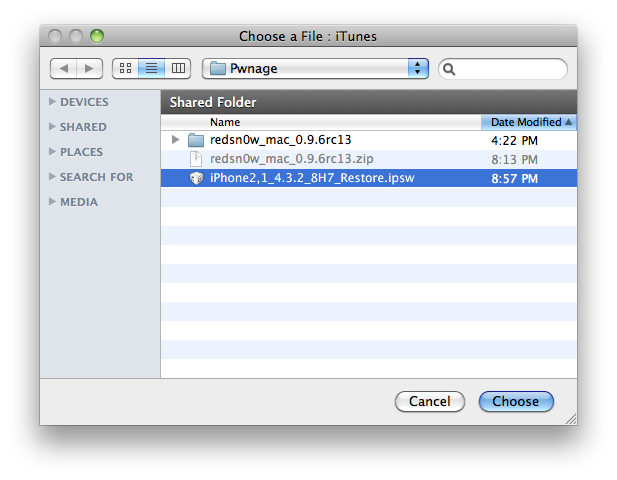
Navigate to the Pwnage folder on your desktop and select the 4.3.2 firmware ipsw. Click theChoose button to continue. 


Step Three
Once iTunes has finished updating your iPhone to the desired firmware open the Pwnage folder on your desktop and launch the redsn0w application from the redsn0w folder we extracted earlier.


Step Four
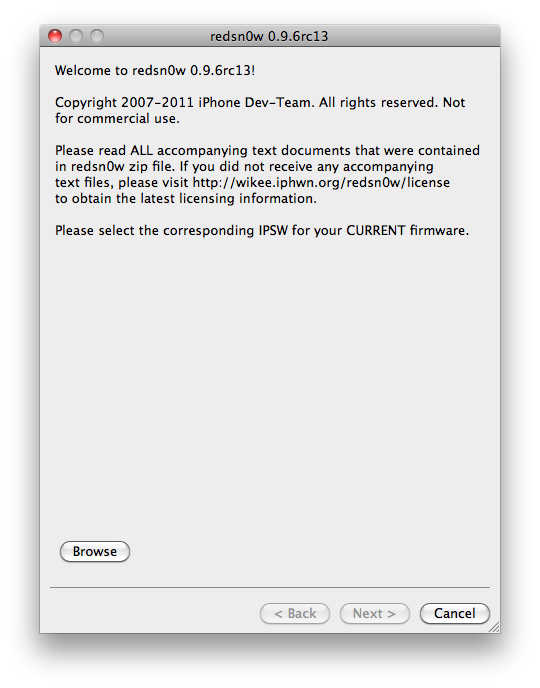
Once RedSn0w opens click the Browse button


Step Five
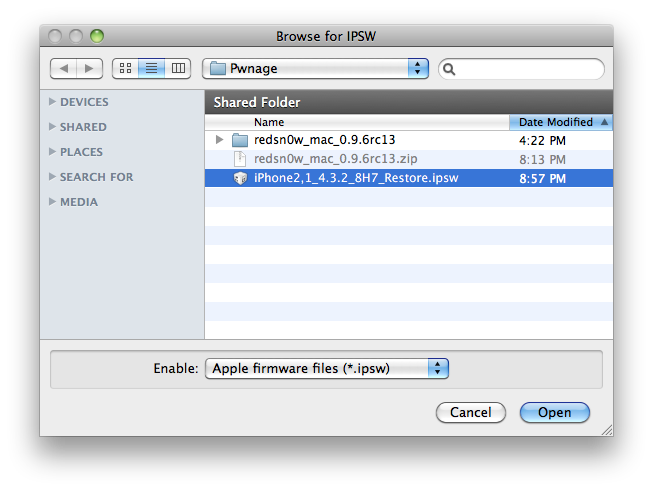
Select the 4.3.2 firmware ipsw we placed in the Pwnage folder on our desktop then click Open.


You will be asked if this device is a newer fixed model. If yours is then click the Yes button; otherwise, click the No button. 


Step Six
Once the firmware has been verified click the Next button to continue.


Step Seven
RedSn0w will now prepare the jailbreak data


Step Eight
From this window you can select the jailbreak options you would like. Make sure Cydia is selected.


Verbose boot displays detailed information on boot of your device and is generally only needed by developers and advanced users.

Make sure Cydia is selected. For this tutorial we will also select Custom boot logo and Custom recovery logo.

When you click to select each custom logo option a dialog window will appear asking you to select the image. Locate the image you would like to use then press the Open button.


*Remember the rules for boot logos are: RGB or Grayscale format with Alpha channel and dimension below 320x480. If you would like to use the iClarified ones they can be found here: 

Boot Logo  
Recovery Logo


If you read the warning above and you would like to update your baseband to the 06.15 iPad version for unlock then check Install iPad Baseband. Click Yes when prompted to confirm your decision.


Click the Next button to continue


Step Nine
Please plug your iPhone into the computer and make sure its OFF then click the Next button


Step Ten
RedSn0w will now guide you through the steps to get into DFU mode. You can find more help with DFU mode here


Hold down both the Home button and the Power button for 10 seconds.


Release the Power button and continue holding the Home button until RedSn0w detects the device.


Step Eleven
Your iPhone will now reboot


Step Twelve
RedSn0w will then begin uploading the new RAM Disk and Kernel.


Step Thirteen
Once this is complete you will be notified that RedSn0w is done. Click the Finish button. When your iPhone finishes rebooting (5 minutes or so) it will be jailbroken with Cydia on the SpringBoard.


*As usual a big thanks to the iPhone Dev-Team and I0n1c for their hard work and contribution to the iPhone community.


*thanks iclarified*
Our new Forum is now open here or on the top tabs marks Forums, please register and post.. For the latest limera1n, rubyra1n, and all tech stories, follow us on Twitter at @iphonepixelpost or @limerain_com www.iPodSets.com - Posted using my iPhone 4